// What Happened When We Tested Playwright 1.63: Test Locks, Snapshots, and Agent Workflows
Modern web applications are becoming complex with parallel test execution, dynamic user interface, iframes, API testing, and AI-powered automation becoming common parts of testing.
Playwright 1.63 introduces several improvements that address these modern automation challenges. Test Lock provides better control when parallel test access to shared resources, while cross-frame locating simplifies interaction with elements inside iframe. Visible only locators make locator handling more expressive.
The release also improves test execution analysis and reporting through built-in perfetto reporters and enhanced HTML reporting. These capabilities can help teams understand parallel execution, identify slow areas, and improve CI/CD test performance.
For AI and Agent based testing, playwright 1.63 is particularly relevant because structured accessibility information can provide AI-driven tools with better representation of application UI.
What You Should Know Before Upgrading to Playwright 1.63
Before exploring this topic, it is recommended to have a basic understanding of Playwright fundamentals.
You should also be familiar with:
- Parallel execution: Understanding workers and why shared resources can cause conflicts.
- Frames and iframes: Basic knowledge of
frameLocator()and frame-based interaction. - Test reporting and tracing: Familiarity with the HTML report and Trace Viewer will help when exploring new reporting capabilities.
- Node.js and npm: Required for managing Playwright packages and upgrading dependencies.
What's new in playwright 1.63
Test Locks - Controlling Concurrent Access to Shared Resources
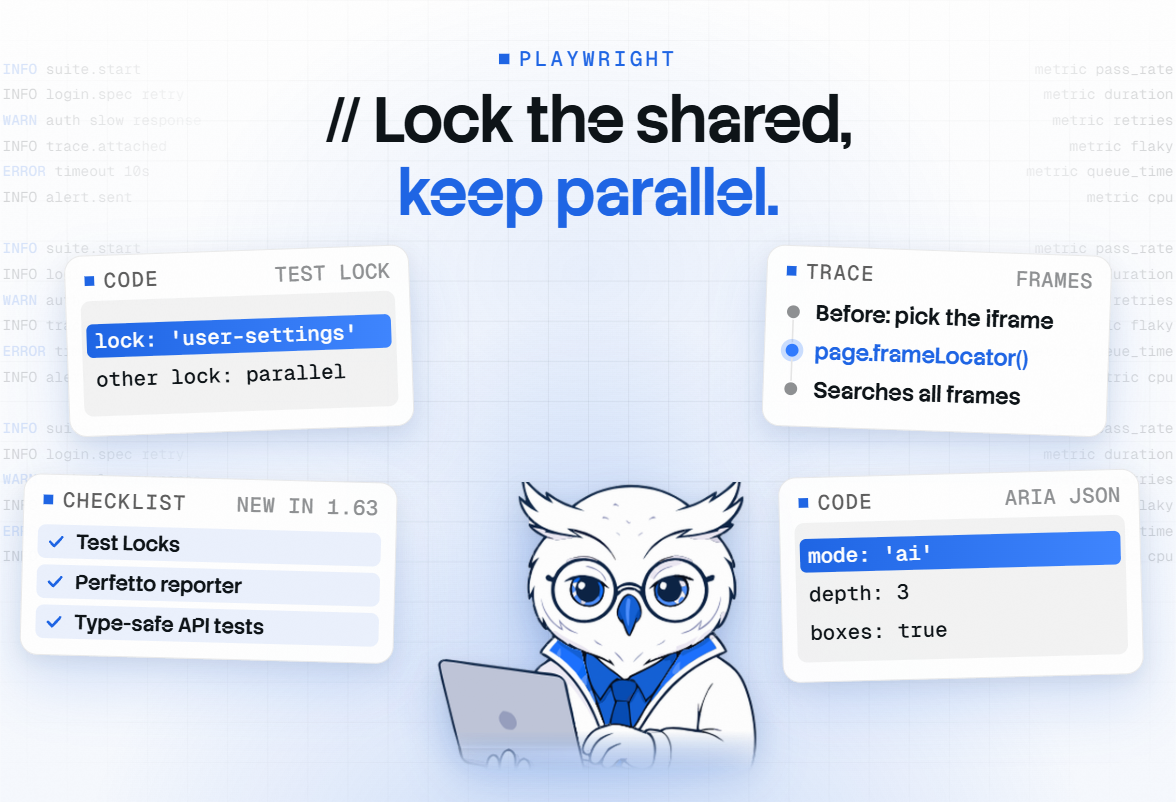
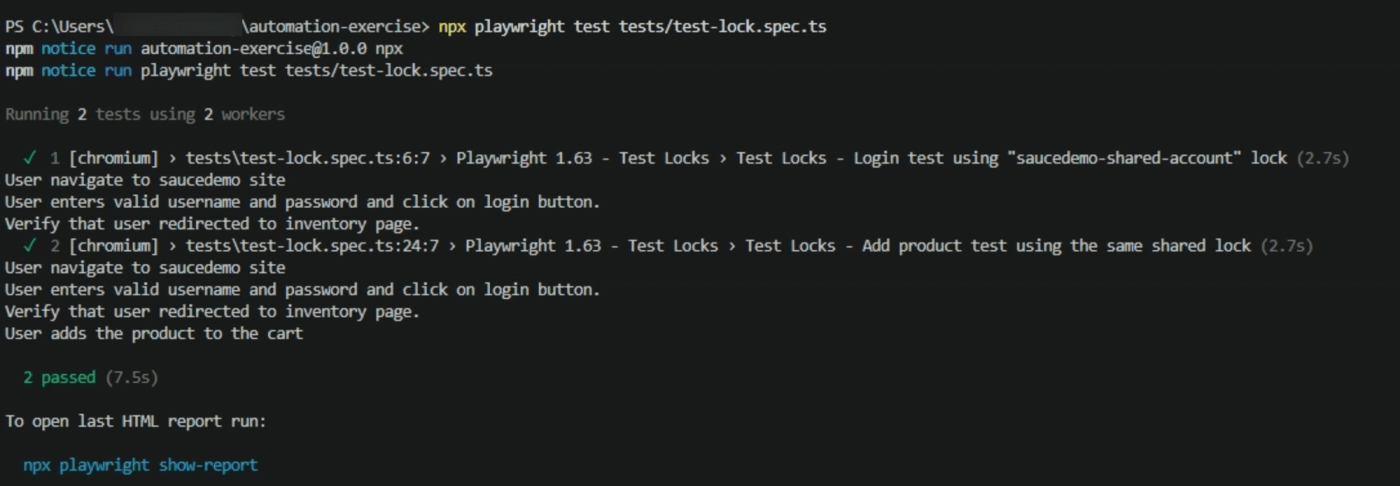
Test Lock is a new feature introduced in Playwright 1.63 that helps control concurrent test execution when multiple tests need to access the same shared resource. Tests that use the same lock name are prevented from running simultaneously, while tests using different locks can continue to execute in parallel.
Why are Test locks needed?
Playwright runs tests in parallel to reduce overall execution time. However, some shared resources cannot be safely accessed by multiple tests at the same time, such as:
- A shared test account
- Global User settings
- A shared database record
- An external service with limited access
- A resource that must be updated by only one test at a time
test('update user settings', { lock: 'user-settings' }, async ({ page }) => {

   // never runs at the same time as other tests holding 'user-settings'
});
Before Test Locks, you could control this by reducing workers or organizing tests differently, but that could unnecessarily reduce parallelism. It allows only the tests that share the resources.
We will use, sauce demo practice website for practical example, here both tests will use ‘saucedemo-shared-account'. Therefore, Playwright will coordinate these tests and prevent them from running at the same time.
import { test, expect } from '@playwright/test';

test.describe('Playwright 1.63 - Test Locks', () => {

    test('Test Locks - Login test using "saucedemo-shared-account" lock', { lock: 'saucedemo-shared-account' },

        async ({ page }) => {

            console.log('User navigate to saucedemo site');
            await page.goto('https://www.saucedemo.com/');

            console.log("User enters valid username and password and click on login button.")
            await page.getByPlaceholder('Username').fill('standard_user');
            await page.getByPlaceholder('Password').fill('secret_sauce');
            await page.getByRole('button', { name: 'Login' }).click();

            console.log("Verify that user redirected to inventory page.")
            await expect(page).toHaveURL(/inventory/);
        }
    );

    // It will use the SAME lock as Test 1

    test('Test Locks - Add product test using the same shared lock', { lock: 'saucedemo-shared-account' },

        async ({ page }) => {

            console.log('User navigate to saucedemo site');
            await page.goto('https://www.saucedemo.com/');

            console.log("User enters valid username and password and click on login button.")
            await page.getByPlaceholder('Username').fill('standard_user');
            await page.getByPlaceholder('Password').fill('secret_sauce');
            await page.getByRole('button', { name: 'Login' }).click();

            console.log("Verify that user redirected to inventory page.")
            await expect(page).toHaveURL(/inventory/);

            console.log("User adds the product to the cart")
            await page.locator('.inventory_item').filter({ hasText: "Sauce Labs Backpack" }).getByRole('button', { name: "Add to cart" }).click();
        }
    );
});
Locate Elements Across Frames
Playwright 1.63 introduced the ability to locate an element across a frame without first identifying the specific frame. Previously, we had to locate iframe and use framelocator() to interact with elements. In 1.63 calling page.framelocator() without selector searches across the main page and frame in subtree.
Before Playwright 1.63
const frame = page.frameLocator('#login-frame');

await frame.getByRole('button', { name: 'Login' }).click();
After Playwright 1.63
You can search across frame directly.
await page.frameLocator().getByRole('button', { name: 'Login' }).click();This searches for a button in the main iframe or any iframe on the page.
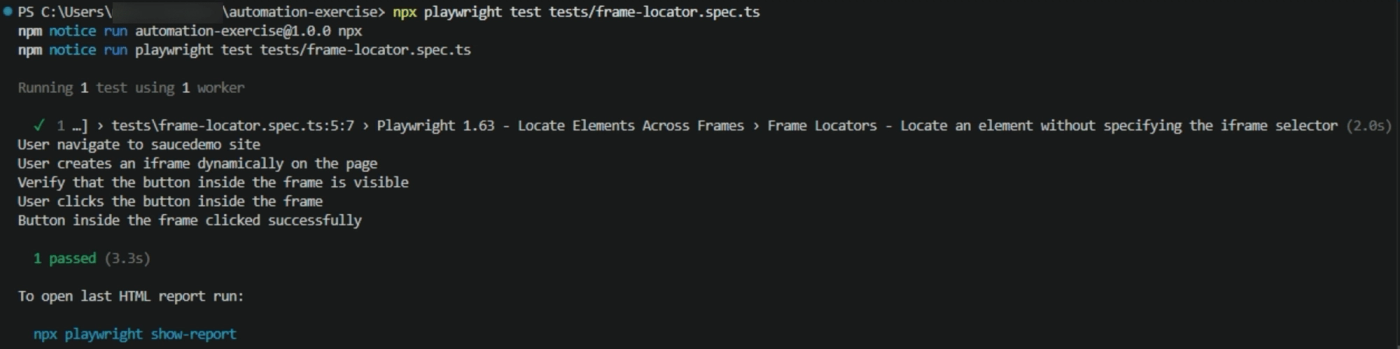
In the example below, frameLocator() can be used without specifying an iframe selector. Playwright searches for the matching frame in the frame subtree.
import { test, expect } from '@playwright/test';

test.describe('Playwright 1.63 - Locate Elements Across Frames', () => {

    test('Frame Locators - Locate an element without specifying the iframe selector', async ({ page }) => {

            console.log('User navigate to saucedemo site');
            await page.goto('https://www.saucedemo.com/');

            console.log('User creates an iframe dynamically on the page');
            await page.evaluate(() => {
                const iframe = document.createElement('iframe');
                iframe.title = 'Playwright frame demo';
                iframe.srcdoc = `
          <!doctype html>
          <html>
            <body>
              <button id="frame-action">
                Frame Action
              </button>
            </body>
          </html>
        `;
                document.body.appendChild(iframe);
            });
            const frameButton = page.frameLocator().getByRole('button', { name: 'Frame Action' });

            console.log('Verify that the button inside the frame is visible');
            await expect(frameButton).toBeVisible();

            console.log('User clicks the button inside the frame');
            await frameButton.click();

            console.log('Button inside the frame clicked successfully');
        }
    );
});
Important note: If the same element matches multiple frames, the playwright throws an error rather than choosing one arbitrarily.
Filter Locators Based on Visibility
Playwright 1.63 introduces a dedicated locator.visible() API that allows you to filter the element based on their visibility. This is useful when page contains multiple matching elements, but you want to interact only with an element which is visible.
Locator.visible() matching only visible element. It is the recommended alternative to using the :visible CSS pseudo class.
await page.locator('button').visible().click();Why is it useful?
A web page may contain multiple elements with the same locator, such as hidden and visible elements. Using visible() filters out hidden elements, so Playwright can target the visible match.
import { test, expect } from '@playwright/test';

test.describe('Playwright 1.63 - Visibility Filtering', () => {

    test('Visibility Filtering - Locate only visible elements using .visible()', async ({ page }) => {

            console.log('User navigate to saucedemo site');
            await page.goto('https://www.saucedemo.com/');

            console.log('User enters valid username and password and clicks on login button');
            await page.getByPlaceholder('Username').fill('standard_user');
            await page.getByPlaceholder('Password').fill('secret_sauce');
            await page.getByRole('button', { name: 'Login', }).click();

            console.log('Verify that user redirected to inventory page');
            await expect(page).toHaveURL(/inventory/);
            const backpack = page.locator('.inventory_item').filter({ hasText: 'Sauce Labs Backpack', }).visible();

            console.log('Verify that the visible Backpack is found');
            await expect(backpack).toHaveCount(1);

            console.log('User adds Sauce Labs Backpack to the cart');
            await backpack.getByRole('button', { name: 'Add to cart', }).click();

            console.log('Verify that Remove button is displayed');
            await expect(backpack.getByRole('button', { name: 'Remove', })).toBeVisible();
        }
    );
});
Working with Accessibility Snapshots as JSON
Playwright 1.63 introduces page.ariaSnapshotJSON() and locator.ariaSnapshotJSON(), which returns accessibility snapshot as JSON object instead of YAML markup. This makes the page accessible structure easier for automation code and AI agents to process.
Why is it useful?
- Structured data: Represents elements using properties such as roles, accessible names, and children.
- AI agent integration: The mode: ‘ai’ option provides a snapshot optimized for AI consumption.
- Element identification: AI agent can use element references and cursor information to help identify interactive elements.
- Bounding boxes: The boxes: true option includes element coordinates, which can help visual grounding.
- Control snapshot size: The depth option limits how deeply the snapshot represents the page tree.
In the below example, ariaSnapshotJSON() returns the accessibility tree as a JSON object. mode: 'ai' provides an AI-oriented representation, depth controls how deep the accessibility tree is captured, boxes includes element bounding box information.
import { test, expect } from '@playwright/test';

test.describe('Playwright 1.63 - Accessibility Snapshots as JSON', () => {

    test('Accessibility Snapshot - Capture the accessibility tree as JSON', async ({ page }) => {

        console.log('User navigate to saucedemo site');
        await page.goto('https://www.saucedemo.com/');

        console.log('Capture accessibility snapshot as JSON');
        const snapshot = await page.ariaSnapshotJSON({ mode: 'ai', depth: 3, boxes: true, });

        console.log('Verify that accessibility snapshot is generated');
        expect(snapshot).toBeTruthy();

        console.log('========== ACCESSIBILITY SNAPSHOT ==========');
        console.log(JSON.stringify(snapshot, null, 2));
        console.log('============================================');
    }
    );
});
Enhancing test.step() with Parameters
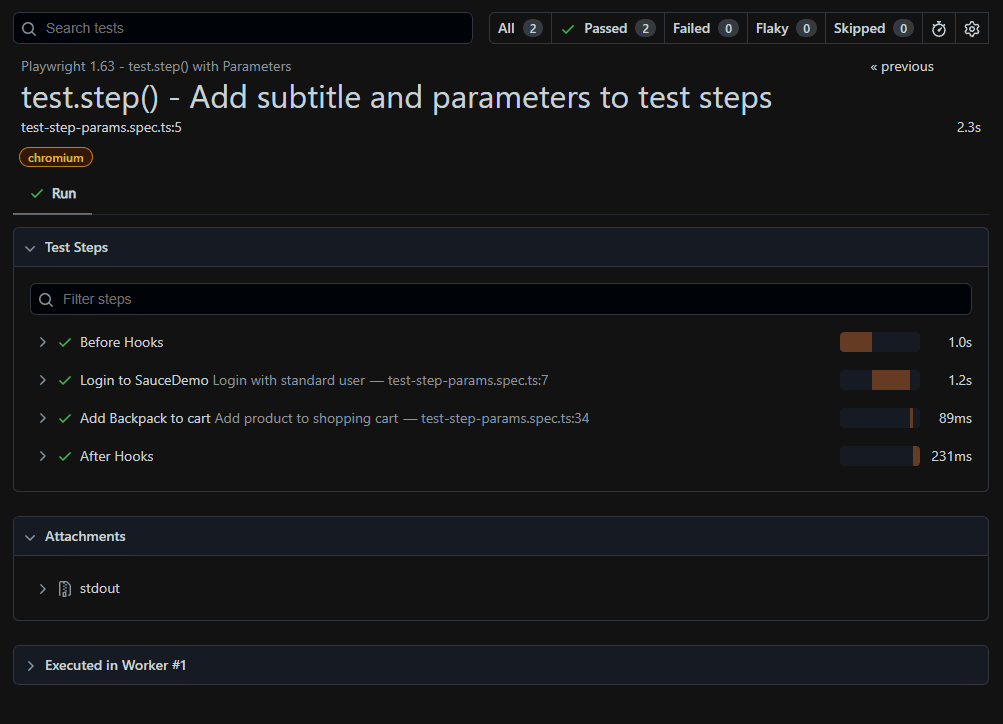
Playwright 1.63 enhances test.step() with additional parameters, including support for step subtitles, making test execution steps more descriptive and easier to understand in reports
await test.step('Login', async () => {  // ...
}, { subtitle: 'as admin', params: { user: 'admin' } });
Simple difference:
| Previous version | Playwright 1.63 |
| Test.step() was used to group test action under a descriptive title | Additional step parameter provides more option for describing and organizing steps |
| Test report displayed the step and execution details | Enhanced step metadata can make reports more informative and easier to navigate |
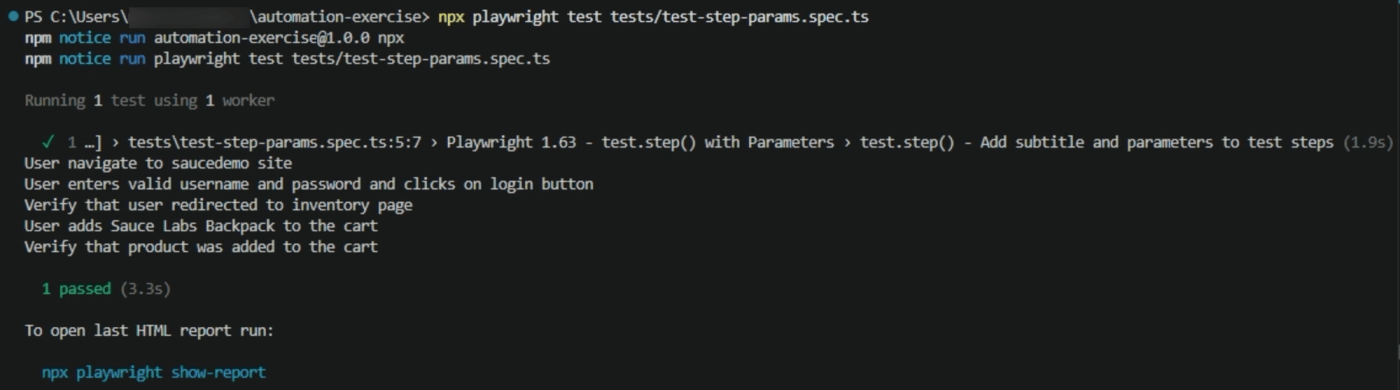
In the below example, subtitle adds additional information to the test step, params allow structured parameters to be attached to the test step. Also, you can verify these details in the Playwright HTML report.
import { test, expect } from '@playwright/test';

test.describe('Playwright 1.63 - test.step() with Parameters', () => {
    test('test.step() - Add subtitle and parameters to test steps', async ({ page }) => {

        await test.step('Login to SauceDemo', async () => {

            console.log('User navigate to saucedemo site');
            await page.goto('https://www.saucedemo.com/');

            console.log('User enters valid username and password and clicks on login button');
            await page.getByPlaceholder('Username').fill('standard_user');
            await page.getByPlaceholder('Password').fill('secret_sauce');
            await page.getByRole('button', { name: 'Login', }).click();

            console.log('Verify that user redirected to inventory page');
            await expect(page).toHaveURL(/inventory/);

        }, {   // subtitle adds additional information to the test step.
            subtitle: 'Login with standard user', params: { username: 'standard_user', },
        });
        await test.step('Add Backpack to cart', async () => {

            console.log('User adds Sauce Labs Backpack to the cart');
            const backpack = page.locator('.inventory_item').filter({ hasText: 'Sauce Labs Backpack', });

            await backpack.getByRole('button', { name: 'Add to cart', }).click();
            console.log('Verify that product was added to the cart');

            await expect(backpack.getByRole('button', { name: 'Remove', })).toBeVisible();
        }, { subtitle: 'Add product to shopping cart', params: { product: 'Sauce Labs Backpack', }, });
    }
    );
});
Type-Safe API Testing with Playwright
The latest release introduces a type argument for API request methods, allowing you to specify the expected response type so that response.json() is typed in Typescript. This improves autocomplete and helps catch type-related mistakes during development.
const response = await request.get < User > ('/api/users/42');
const user = await response.json(); // typed as User
In short, Playwright 1.63 improves Typescript API testing by allowing response JSON to be typed directly through a generic-type argument, improving developer experience without replacing runtime validation.
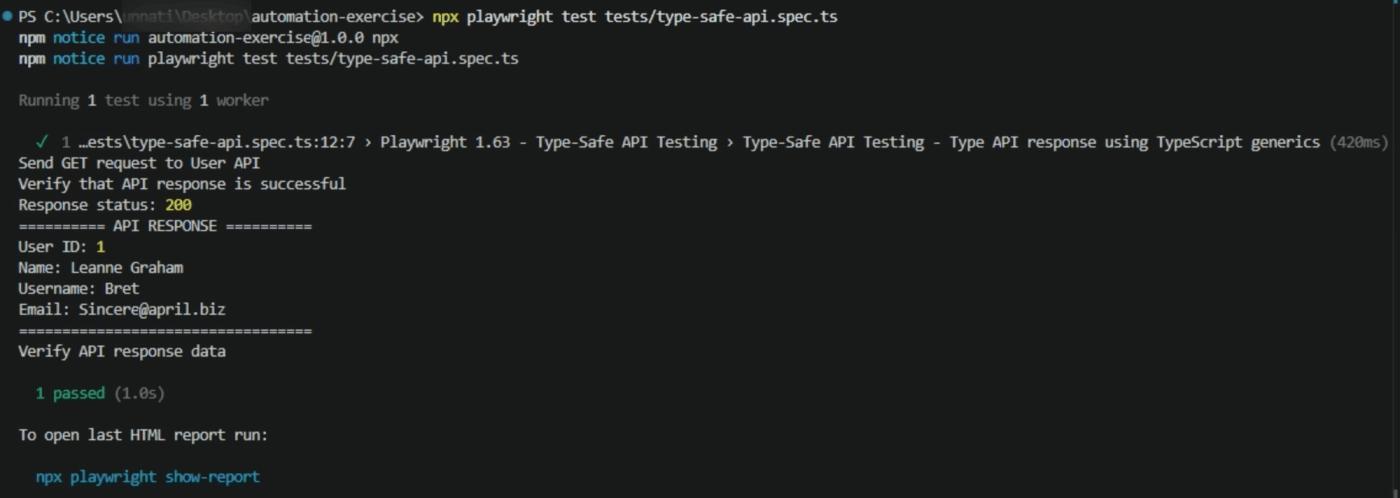
In the below example, the API request method accepts a TypeScript generic. This tells TypeScript that the expected response follows the ApiUser interface.
import { test, expect } from '@playwright/test';

interface ApiUser { id: number; name: string; username: string; email: string; }

test.describe('Playwright 1.63 - Type-Safe API Testing', () => {
    test('Type-Safe API Testing - Type API response using TypeScript generics', async ({ request }) => {

        console.log('Send GET request to User API');

        const response = await request.get < ApiUser > ('https://jsonplaceholder.typicode.com/users/1');

        console.log('Verify that API response is successful');
        expect(response.ok()).toBeTruthy();

        console.log('Response status:', response.status());
        // Because the response is typed as ApiUser,
        // TypeScript understands the properties of user.

        const user = await response.json();
        console.log('========== API RESPONSE ==========');
        console.log('User ID:', user.id);
        console.log('Name:', user.name);
        console.log('Username:', user.username);
        console.log('Email:', user.email);
        console.log('==================================');
        console.log('Verify API response data');

        expect(user.id).toBe(1);
        expect(user.name).toBeTruthy();
        expect(user.username).toBeTruthy();
        expect(user.email).toContain('@');
    }
    );
});
Analyzing Playwright Test Execution with Perfetto
Perfetto reporter in playwright 1.63 helps developer analyze test execution through a timeline-based visualization of test workers and their activities.
It is useful for understanding how tests are distributed across the workers, identifying bottlenecks, and investigating delays.
Why is it useful?
- Visualize execution: View test activity on a timeline.
- Analyze parallelism: Understand how workers execute test over a time
- Identify bottlenecks: Find long running test or periods of activity
- Optimize CI/CD: Use timing insight to help improve test-suite execution
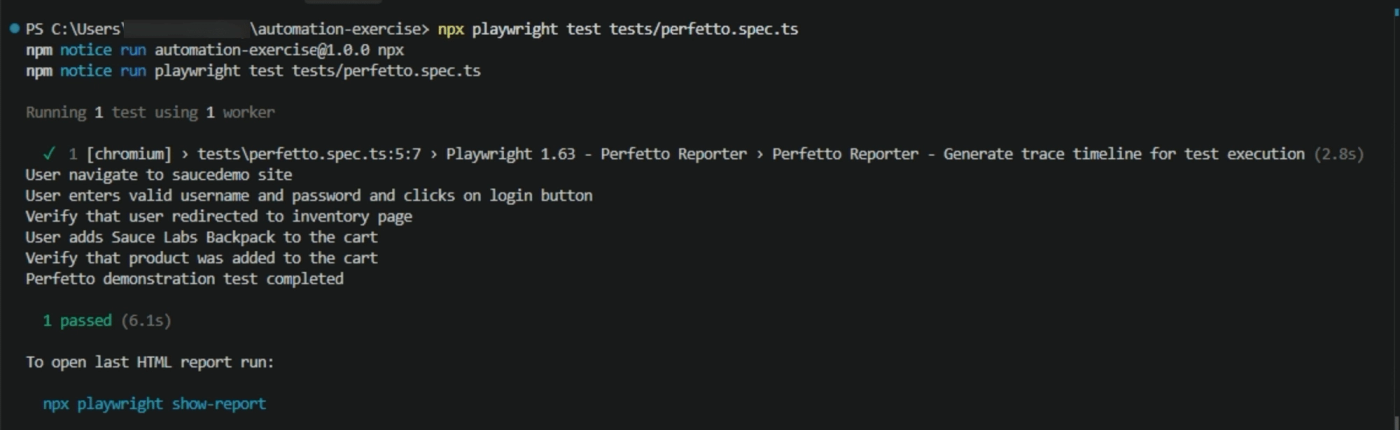
In the example below, we will see how to use the perfetto reporting and how to open it.
To run the perfetto use below command :
npx playwright test tests/playwright-163/perfetto.spec.ts --add-reporter=perfettoIt will generate file perfetto.json. To open it, visit Perfetto UI and load the generated Perfetto trace output. You can also load it in chrome.
import { test, expect } from '@playwright/test';

test.describe('Playwright 1.63 - Perfetto Reporter', () => {

    test('Perfetto Reporter - Generate trace timeline for test execution', async ({ page }) => {

        console.log('User navigate to saucedemo site');
        await page.goto('https://www.saucedemo.com/');

        await test.step('Login to SauceDemo', async () => {

            console.log('User enters valid username and password and clicks on login button');
            await page.getByPlaceholder('Username').fill('standard_user');
            await page.getByPlaceholder('Password').fill('secret_sauce');
            await page.getByRole('button', { name: 'Login' }).click();

            console.log('Verify that user redirected to inventory page');
            await expect(page).toHaveURL(/inventory/);
        });

        await test.step('Add Backpack to cart', async () => {
            console.log('User adds Sauce Labs Backpack to the cart');
            const backpack = page.locator('.inventory_item').filter({ hasText: 'Sauce Labs Backpack' });
            await backpack.getByRole('button', { name: 'Add to cart' }).click();

            console.log('Verify that product was added to the cart');
            await expect(backpack.getByRole('button', { name: 'Remove' })).toBeVisible();
        });

        console.log('Perfetto demonstration test completed');
    });
});

Playwright 1.63 for AI/Agent Testing
Playwright 1.63 is not an AI-specific release, but some of its capabilities can be useful when building or testing AI-powered browser agents.
| Playwright capabilities | How it helps AI/Agent testing |
| Accessibility testing | Provides structured information about page elements that an AI agent can use to understand the UI. |
| Cross-frame locating | Helps an agent to interact with elements inside nested frames without manually locating each iframe first |
| Test Locks | Helps prevent AI-generated or agent-driven tests that use the same shared resources from running concurrently. |
| Improved test reporting | Gives agent and developers more execution information for analyzing test failure and performance |
When Should You Upgrade to Playwright 1.63?
You should consider upgrading to playwright 1.63 when you want to benefit from the latest improvements in test synchronization, cross-frame element handling, accessibility testing, execution analysis and reporting.
Upgrade especially when:
- Your test access shared resource concurrently and you need better synchronization using Test Locks.
- Your application contains iframe or nested frames, and you need simpler frame locating.
- You need better accessibility and UI-State visibility during test execution.
- You want to improve test execution analysis using Perfetto reporter.
- You need more detailed test steps duration information in the HTML report.
The bottom line: If your project depends heavily on Playwright for CI/CD pipelines, parallel test execution, accessibility testing, or complex web applications, then the move to Playwright 1.63 can matter.
Playwright 1.63 vs Previous Versions
Playwright has introduced significant improvements over the latest releases. Playwright 1.63 continues this evolution by adding features focused on parallel execution, frame handling, accessibility reporting and test execution analysis.
The following comparison highlights some important changes from recent versions.
| Feature | Previous Playwright version | Playwright 1.63 |
| Test Locks | Test accessing same shared resource required manual synchronization | Test can use named locks to prevent conflicting tests from running concurrently |
| Cross frame locating | You need to identify iframe before locating the locators | You can search across frame subtree before locating an iframe |
| Locator.visible() | Visibility handles using filters or :visible selector | Playwright 1.63 provides dedicated visible only API |
| ARIA Snapshot | Accessibility snapshot and screenshot could be captured separately | Tracing can capture ARIA and screenshot on every action |
| Perfetto Reporter | Test execution analysis relies on existing report | Playwright 1.63 adds a Perfetto reporter for timeline-based worker execution analysis |
Conclusion
Playwright 1.63 brings several improvements that make modern test automation more reliable, maintainable, and easier to analyze. Features such as Test Locks, cross-frame element locating, visibility-based locators, JSON accessibility snapshots, Improved test.step(), type-safe API testing and Perfetto reporting address common challenges in real-world automation.
Overall, Playwright 1.63 builds on Playwright's existing capabilities and provides useful improvements for teams working with parallel execution, complex webapp, API testing, CI/CD and AI assisted automation.
Witness how our meticulous approach and cutting-edge solutions have elevated quality and performance to new heights. To know more, refer to Tools and Technologies and QA Services.
If you would like to learn more about the services we provide, be sure to reach out.
Happy Testing 😊