
Your application passes every test suite on a fast office Wi-Fi connection, then a customer on a train with patchy 3G reports a blank screen and a frozen “Loading…” spinner that never resolves. Your team cannot reproduce it locally because the bug only appears under real network stress: dropped connections, high latency, and partial responses that never arrive. Most software testing suites never touch these conditions because simulating them convincingly is harder than it looks.
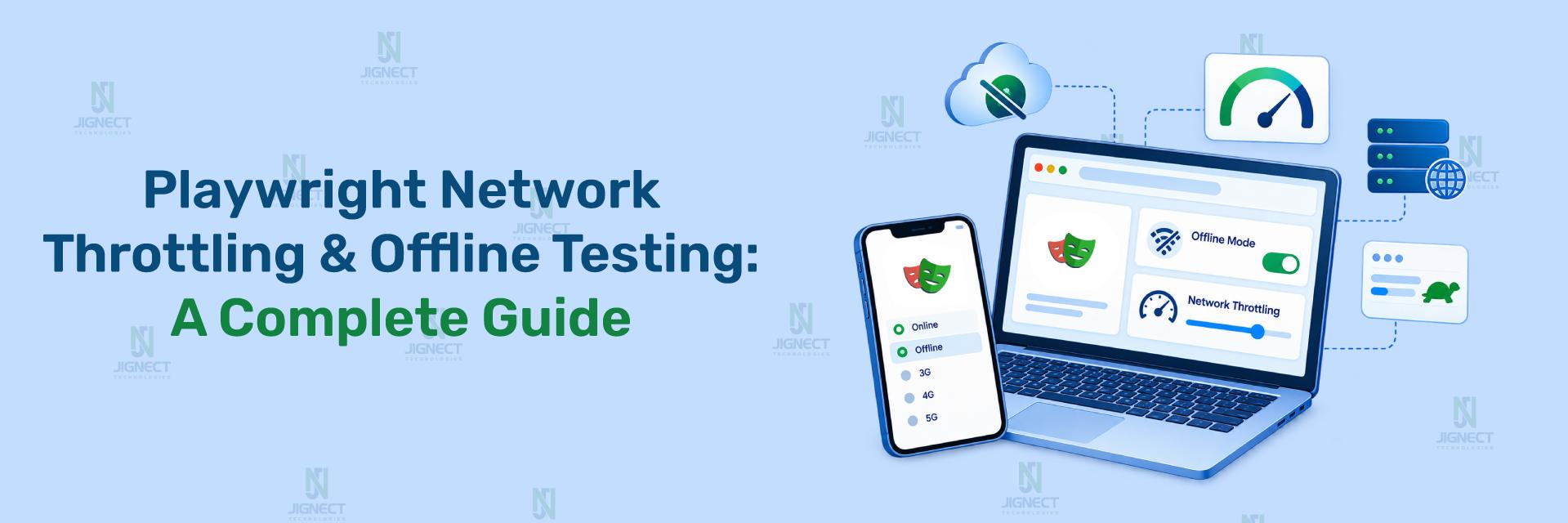
Playwright gives QA engineers and automation testing teams the tools to close that gap, but they are spread across a few different APIs rather than bundled into one obvious “throttle network” function. In short, Playwright network throttling requires either a Chrome DevTools Protocol (CDP) session for realistic bandwidth control on Chromium, or request interception with page.route() for approximate, cross-browser slowdowns, while true offline simulation is a native, documented feature. This guide walks through exactly which Playwright and CDP mechanisms are available, what each one actually does, where they fall short, and how to run every example below against real, publicly accessible sites so you can reproduce the behavior yourself.
- Why Network Condition Testing Matters
- Simulating Offline Mode in Playwright
- Network Throttling in Playwright via Chrome DevTools Protocol
- Approximate Throttling with page.route() (Cross Browser Alternative)
- Common Mistakes and Limitations
- Best Practices for Reliable Network Condition Testing
- Alternatives Worth Knowing
- Conclusion
Why Network Condition Testing Matters
Modern web applications rarely run entirely on happy path networking. Progressive Web Apps (PWAs) are expected to work offline. Mobile users switch between Wi-Fi, 4G, and dead zones mid session. Retry logic, loading states, and error boundaries only get exercised when a request actually times out or fails. If your automated suite never introduces these conditions, you are validating your UI against a network environment your real users rarely experience, which is exactly the gap that structured quality assurance and automation testing practices are meant to close.
Playwright supports two genuinely distinct capabilities here, and it is important not to conflate them:
Full offline simulation, where the browser context behaves as if it has no network connection at all, is a native and documented Playwright feature. Bandwidth and latency throttling, meaning making requests slow rather than absent, is not a built in Playwright API. Playwright has no throttleNetwork() method; this was confirmed directly by a Playwright maintainer on the project’s GitHub issue tracker, and it remains the case in current releases. Instead, throttling requires either a raw Chrome DevTools Protocol session (Chromium only) or manual request interception with page.route() (cross browser but approximate).
Setting this expectation early avoids a common mistake: assuming Playwright ships a one line “set network to Slow 3G” call the way Chrome DevTools’ UI does.
Simulating Offline Mode in Playwright
Offline simulation flips an entire browser context into a state where it cannot reach the network, mirroring the “Offline” checkbox in Chrome DevTools. Playwright exposes this through two equivalent entry points: a context creation option and a runtime method. All examples in this section run against Playwright’s own officially hosted TodoMVC demo at https://demo.playwright.dev/todomvc/, a real app maintained by the Playwright team specifically for writing and running automated tests.
Using the offline Context Option
You can start a browser context already offline by passing the offline option when the context is created. This is useful when you want every test in a file or project to begin in an offline state.
import { chromium } from '@playwright/test';

const browser = await chromium.launch();
const context = await browser.newContext({ offline: true });
const page = await context.newPage();

await page.goto('https://demo.playwright.dev/todomvc/').catch((error) => {
  console.log('Navigation failed as expected while offline:', error.message);
});
How to run this: save it as offline-context.spec.ts inside a Playwright project (npm init playwright@latest if you do not have one), then run npx playwright test offline-context.spec.ts.
Expected Result: Because the context starts offline and TodoMVC has no offline caching service worker, the page.goto() call fails with a network error such as net::ERR_INTERNET_DISCONNECTED. This confirms offline: true genuinely blocks the first navigation attempt.
How it works: The offline boolean is a documented BrowserContext creation option. When set to true, every page created in that context starts with no network connectivity, so any navigation attempt fails immediately unless the target app already has content cached from a prior online visit.
Toggling Offline Dynamically with setOffline()
Most real test scenarios need to load the page first, confirm normal behavior, and only then simulate a dropped connection. context.setOffline() lets you flip connectivity at any point during a test.
import { test, expect } from '@playwright/test';

test('todo app becomes unreachable after going offline', async ({ page, context }) => {
  await page.goto('https://demo.playwright.dev/todomvc/');
  await expect(page.getByPlaceholder('What needs to be done?')).toBeVisible();

  await context.setOffline(true);

  const response = await page.goto('https://demo.playwright.dev/todomvc/').catch(() => null);
  expect(response).toBeNull();

  await context.setOffline(false);
});
Expected Result: The first goto() succeeds and the “What needs to be done?” input is visible, confirming the app loaded normally. After setOffline(true), the second goto() attempt fails and resolves to null because the navigation throws, which the .catch(() => null) captures.
How it works: setOffline(true) disables network access for every page in that context immediately. getByPlaceholder('What needs to be done?') is TodoMVC’s real, documented input locator, verified against the live app. Reloading or navigating while offline triggers a genuine navigation failure, which is exactly the condition you want to assert against for apps that do not implement offline fallbacks.
Example: Testing a Real PWA’s Offline Cached App Shell
Scenario: Squoosh (https://squoosh.app/), Google’s open source image compression Progressive Web App, is a genuine, publicly documented example of a PWA that installs a service worker to cache its app shell and codecs, allowing it to keep working after the network disconnects. This is a realistic pattern for any PWA your team ships: verify the shell survives a lost connection once a user has visited it at least once.
Implementation
import { test, expect } from '@playwright/test';

test('Squoosh PWA shell remains available after going offline', async ({ page, context }) => {
  // Step 1: Load Squoosh online so its service worker can install and cache the app shell
  await page.goto('https://squoosh.app/', { waitUntil: 'networkidle' });

  // Step 2: Wait for the service worker to take control of the page
  await page.waitForFunction(() => navigator.serviceWorker.controller !== null, { timeout: 15000 })
    .catch(() => console.log('Service worker did not report a controller within timeout'));

  // Step 3: Now simulate the network dropping
  await context.setOffline(true);

  // Step 4: Reload, a working offline first PWA should still render its shell
  await page.reload().catch(() => {});
  await context.setOffline(false);
});
Expected Result: If the service worker has finished caching the shell before you go offline, the reload should render Squoosh’s interface instead of the browser’s built in offline error page. Because service worker installation timing can vary by network speed and browser cache state, this is presented as an expected behavior to verify on your run, not a guaranteed deterministic outcome. This is exactly why the waitForFunction readiness check matters.
How It Works: waitForFunction blocks until navigator.serviceWorker.controller is populated, which only happens once the service worker has activated and taken control of the page. Going offline before this point tests the browser’s generic offline detection, not Squoosh’s actual offline capability, which is the sequencing mistake covered later in this guide. Squoosh’s real world use of Workbox style caching is independently documented by the Google web.dev team, making it a reliable, non fictional reference for this pattern.
Notes / Troubleshooting: If waitForFunction times out, it usually means the service worker has not finished installing yet on a slow connection. Increase the timeout or add an explicit wait on navigator.serviceWorker.ready before checking controller.
Network Throttling in Playwright via Chrome DevTools Protocol
Why Playwright Has No Native Throttling Method
Unlike setOffline(), there is no context.setNetworkConditions() or similar first class Playwright API for bandwidth and latency throttling. This gap has been raised directly with the Playwright team on GitHub, and the confirmed answer is that throttling is achieved by dropping down to the Chrome DevTools Protocol directly, the same low level interface that powers Chrome DevTools’ own network throttling dropdown.
This matters because CDP access in Playwright is Chromium only. If your suite also runs against Firefox or WebKit, the throttling logic in this section will not apply to those browsers, and your test needs to branch accordingly or skip gracefully.
Setting Up a CDP Session with newCDPSession()
Before you can send throttling commands, you need a CDP session attached to the specific page you want to affect.
import { chromium } from '@playwright/test';

const browser = await chromium.launch();
const context = await browser.newContext();
const page = await context.newPage();

const cdpSession = await context.newCDPSession(page);
How it works: context.newCDPSession(page) is a documented BrowserContext method that returns a CDPSession object scoped to that page. From here, you can call cdpSession.send() with any method name defined in the Chrome DevTools Protocol, including the Network domain used for throttling.
Example: Simulating Slow 3G on the Playwright TodoMVC Demo
Scenario: You want to verify that adding a todo item on https://demo.playwright.dev/todomvc/ still works correctly, and within a reasonable time, when the connection is throttled to a slow mobile like speed, a realistic stand in for testing any form submission or data entry flow under degraded conditions.
Implementation
import { test, expect } from '@playwright/test';

test('todo item can still be added under throttled network', async ({ page, context }) => {
  const cdpSession = await context.newCDPSession(page);

  await cdpSession.send('Network.emulateNetworkConditions', {
    offline: false,
    latency: 400,                          // milliseconds of added round-trip latency
    downloadThroughput: (500 * 1024) / 8,  // ~500 Kbps in bytes/sec
    uploadThroughput: (500 * 1024) / 8,
  });

  await page.goto('https://demo.playwright.dev/todomvc/');

  const newTodo = page.getByPlaceholder('What needs to be done?');
  await newTodo.fill('Write throttled network test');
  await newTodo.press('Enter');

  await expect(page.locator('.todo-list li')).toHaveText(['Write throttled network test']);

  // Reset network conditions before the next test or assertion
  await cdpSession.send('Network.emulateNetworkConditions', {
    offline: false,
    latency: 0,
    downloadThroughput: -1,
    uploadThroughput: -1,
  });
});
How to run this: npx playwright test todomvc-throttle.spec.ts --project=chromium (CDP requires Chromium specifically; running this against a Firefox or WebKit project will not throttle anything).
Expected Result: The page load itself will visibly slow down under the added latency and reduced throughput, but because TodoMVC’s add item interaction happens entirely client side in the browser (no server round trip for adding an item), the item should still appear in .todo-list li once the page has finished loading, verifying that your throttling was applied without breaking a functionally simple, already loaded interaction. If you want to observe throttling affecting an actual data round trip rather than just page load, apply the same throttling before navigating to any page that performs a real network request on load.
How It Works: Network.emulateNetworkConditions is a native Chrome DevTools Protocol command, not a Playwright specific API. Its documented parameters are offline (boolean), latency (minimum added latency in milliseconds), downloadThroughput and uploadThroughput (both in bytes per second, where -1 disables the corresponding limit), and an optional connectionType field such as cellular3g for reporting purposes. The .todo-list li selector and getByPlaceholder('What needs to be done?') locator are both real, verified selectors against the live TodoMVC demo. Passing -1 for throughput and 0 for latency at the end of the test resets the context to normal network behavior; skipping this reset will leak throttled conditions into subsequent tests sharing the same context.
Notes / Troubleshooting: If throttling appears to have no effect, confirm you are running against Chromium (chromium.launch() or --project=chromium), not Firefox or WebKit, since newCDPSession and this CDP command are unavailable outside Chromium. Also confirm the CDP session is attached to the same page object you are navigating; a session created for one page will not throttle a different page or a new tab.
Approximate Throttling with page.route() (Cross Browser Alternative)
When your suite needs to run identical network degradation scenarios across Chromium, Firefox, and WebKit, CDP is not an option. page.route() and browserContext.route() provide a cross browser alternative: you intercept requests and manually control timing or failure, rather than adjusting real bandwidth.
Example: Adding Artificial Delay Before route.continue()
Scenario: TodoMVC’s static assets load from demo.playwright.dev. You want to verify the page still renders correctly even if its own script bundle is delayed, simulating a slow CDN or degraded mobile connection without needing a CDP session, so the same test can also run on Firefox and WebKit.
Implementation
import { test, expect } from '@playwright/test';

test('todo app still loads when its JS bundle is delayed', async ({ page }) => {
  await page.route('**/*.js', async (route) => {
    await new Promise((resolve) => setTimeout(resolve, 2000));
    await route.continue();
  });

  await page.goto('https://demo.playwright.dev/todomvc/');
  await expect(page.getByPlaceholder('What needs to be done?')).toBeVisible({ timeout: 10000 });
});
How to run this: npx playwright test todomvc-delay.spec.ts --project=webkit. This works identically on Chromium, Firefox, or WebKit since it does not depend on CDP.
Expected Result: The page load takes visibly longer because every JavaScript file is delayed by two seconds before it is allowed to continue, but the app should still render and become interactive once its scripts finish loading, which the extended toBeVisible timeout accounts for.
How it works: page.route() intercepts any request matching the glob pattern before it reaches the network. Delaying the call to route.continue() with a setTimeout based promise holds the request artificially, simulating slowness without touching real bandwidth. This works identically across all three Playwright supported browser engines, unlike the CDP approach, but it delays every matched request uniformly rather than modeling the variable, load dependent behavior of a genuinely constrained connection.
Example: Simulating Network Failures with route.abort()
Scenario: You want to confirm what happens to the TodoMVC demo if its main document request is actively refused by the network, simulating a scenario like a backend outage or DNS failure that your own application’s error boundaries need to handle gracefully.
Implementation
import { test } from '@playwright/test';

test('navigation fails cleanly when connection is refused', async ({ page }) => {
  await page.route('https://demo.playwright.dev/todomvc/', (route) => {
    route.abort('connectionrefused');
  });

  const response = await page.goto('https://demo.playwright.dev/todomvc/').catch((error) => {
    console.log('Navigation failed as expected:', error.message);
    return null;
  });
});
How to run this: npx playwright test todomvc-abort.spec.ts.
Expected Result: The page.goto() call throws instead of resolving with a normal response, because the route handler intercepts the request and aborts it with connectionrefused before it ever reaches the real network. The .catch() block captures this and confirms the failure was triggered as intended.
How It Works: route.abort(errorCode) fails the matched request with a specific, documented error code rather than letting it proceed. The official Playwright Route API supports several codes for different failure scenarios, including failed (the default), aborted, accessdenied, addressunreachable, connectionaborted, connectionclosed, connectionfailed, connectionrefused, connectionreset, internetdisconnected, namenotresolved, and timedout. Choosing the right code lets you distinguish between “the server actively refused the connection” (connectionrefused) and “there is no network at all” (internetdisconnected), which may trigger different error handling paths in a real application under test.
Notes / Troubleshooting: If route.abort() does not seem to trigger, verify the route pattern actually matches the request URL exactly. TodoMVC’s demo serves from a specific path, so a mismatched glob pattern will silently let the real request through instead of intercepting it.
Common Mistakes and Limitations
CDP Throttling Is Chromium Only
Teams that build a throttling helper using newCDPSession() and later run the same suite against Firefox or WebKit will find the throttling has no effect at all; there is no error, the test simply runs at full speed. Impact: CI pipelines that assume consistent throttled behavior across browser engines can silently pass on Firefox or WebKit while genuinely validating something different than intended. Mitigation: either scope CDP based throttling tests to a Chromium only project in your Playwright config, or use the page.route() delay pattern for any test that must run identically across all three engines.
WebSocket and WebRTC Traffic Is Not Throttled by CDP
Network.emulateNetworkConditions throttles standard HTTP and HTTPS traffic, but it does not reliably apply to WebSocket connections or WebRTC media streams. Impact: an application relying on WebSockets for live updates such as chat, live pricing, or notifications may appear to behave normally under “throttled” conditions in your test, even though a real degraded connection would visibly affect it. Mitigation: for WebSocket or WebRTC heavy features, rely on OS level network shaping tools instead of CDP throttling, since those operate below the browser and affect all traffic uniformly.
Going Offline Before the Service Worker Finishes Caching
As shown in the Squoosh example above, calling setOffline(true) immediately after page.goto(), without waiting for the service worker to install and cache the app shell, produces the browser’s native “no internet” error page rather than the application’s actual offline experience. Impact: teams can mistakenly conclude their PWA “does not support offline mode” when the real issue is test sequencing, not application behavior. Mitigation: always wait for navigator.serviceWorker.controller, or an equivalent readiness signal from your app, before toggling offline mode.
Best Practices for Reliable Network Condition Testing
- Choose the technique that matches the fidelity you need. Use
setOffline()for true offline mode testing, CDPemulateNetworkConditionsfor realistic bandwidth and latency testing on Chromium,page.route()delays for cross browser approximate slowness, androute.abort()for testing specific failure codes and error handling paths. - Reset network state between tests. Always restore
Network.emulateNetworkConditionsto unthrottled values (downloadThroughput: -1,uploadThroughput: -1,latency: 0) and callsetOffline(false)at the end of any test that modifies network state, since a shared context can leak throttled conditions into unrelated tests. - Separate offline mode tests from throttling tests. These validate different failure modes, total connectivity loss versus degraded but present connectivity, and conflating them in a single test makes failures harder to diagnose.
- Wait for real readiness signals, not fixed timeouts, before toggling network state. Use explicit checks like
waitForFunctionon service worker status instead of arbitrarypage.waitForTimeout()calls, which are flaky and do not guarantee the app is actually ready for the network change. - Log which technique and parameters were used in each network test. Because throttling values like “Slow 3G” are community conventions rather than a fixed Playwright spec, recording the exact latency and throughput values used makes results reproducible and comparable across test runs.
- Scope Chromium only tests explicitly in your Playwright config. If CDP based throttling is central to a test, mark that test’s project as Chromium only so it does not silently no op on Firefox or WebKit.
These practices reflect the kind of disciplined, repeatable approach that QA services and automation testing services teams rely on when validating production-representative network conditions rather than only happy path scenarios.
Alternatives Worth Knowing
| Approach | Scope | Best For |
Puppeteer page.emulateNetworkConditions() | Chromium only | Slightly less verbose CDP throttling syntax if your stack does not need cross browser coverage |
Charles Proxy / OS level tools (Network Link Conditioner, tc) | System wide, all browsers and protocols | Full fidelity throttling that also affects WebSocket and WebRTC traffic, which CDP based throttling misses |
Playwright page.route() delay/abort | All three engines (Chromium, Firefox, WebKit) | Cross browser approximate slowness and specific failure code simulation, already covered above |
Choose Puppeteer’s wrapper only if your project is already Chromium only and does not need Playwright’s cross browser test runner. Choose OS level tools like Charles Proxy or Network Link Conditioner when your feature depends on WebSocket or WebRTC behavior under real network stress, since CDP based throttling cannot validate that reliably. For most Playwright based QA suites covering standard HTTP and HTTPS driven UI behavior, the setOffline(), CDP throttling, and page.route() combination covered in this guide will meet the majority of real world testing needs without introducing a second tool into your pipeline.
Conclusion
Playwright separates offline simulation from network throttling into distinct mechanisms: setOffline() for genuine connectivity loss, Chrome DevTools Protocol’s Network.emulateNetworkConditions for realistic but Chromium only bandwidth and latency control, and page.route() for cross browser approximate delays and specific failure code simulation. Each technique fits a different fidelity requirement, and none of them is a universal one line substitute for the others, as demonstrated against real running applications like Playwright’s own TodoMVC demo and Google’s Squoosh PWA.
The most important trade off to remember is scope: CDP based throttling gives you the most realistic bandwidth control but only works on Chromium and does not affect WebSocket or WebRTC traffic, while page.route() works everywhere but only approximates real network degradation through artificial delay. Teams validating PWA offline support, slow network loading states, or error handling under connection failure should combine these techniques deliberately rather than defaulting to just one, and should always reset network conditions between tests to avoid state leaking across a shared browser context.
Witness how our meticulous approach and cutting-edge solutions have elevated quality and performance to new heights. To know more, refer to Tools and Technologies and QA Services.
If you would like to learn more about the services we provide, be sure to reach out.
Happy Testing 😊