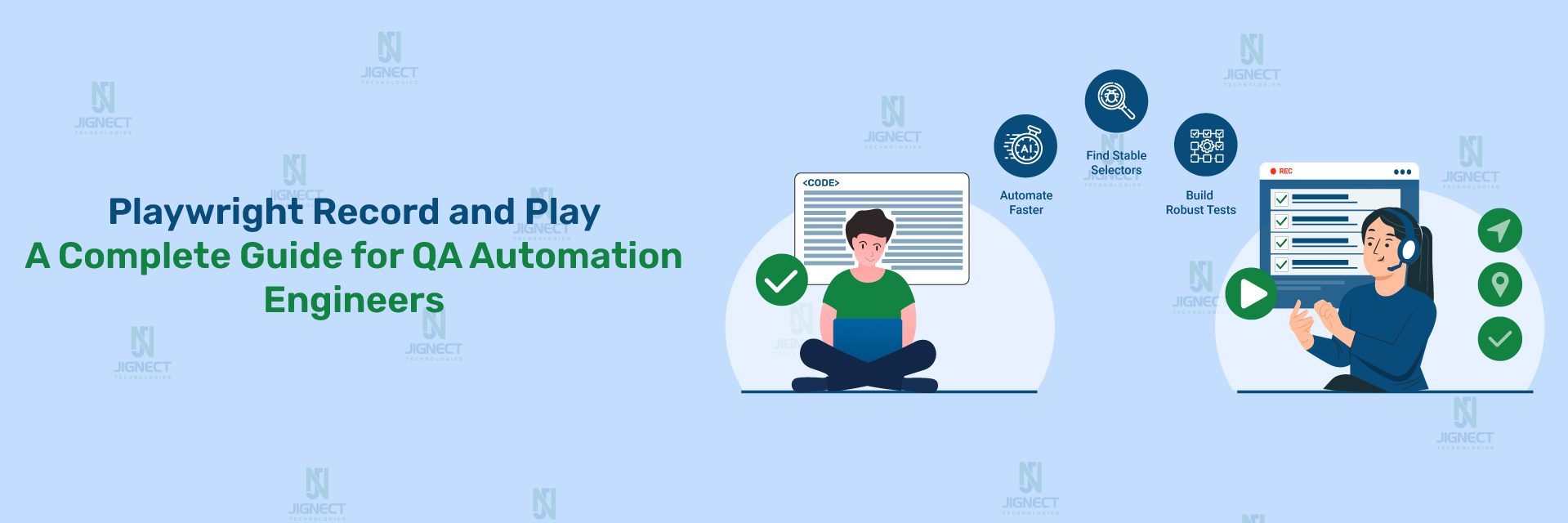

Most QA teams do not start using Playwright automation when everything’s perfect. Playwright automation usually begins when the team is running out of time, and people are making a lot of changes to the features. The teams want to feel confident about the software before it is released. In these situations, it is not always possible to write every test from the beginning.
This is where Playwright’s Record & Play (Codegen) feature becomes useful, not as a shortcut, but as an accelerator. In real projects, Codegen helps teams quickly understand application flows, discover stable selectors, and bootstrap automation without slowing delivery.
This blog explains how Record & Play works in Playwright, when it genuinely helps, where it fails, and how experienced QA teams use it responsibly in production-grade frameworks.
- What the Record and Play (Codegen) feature is
- Prerequisites & Setup in Playwright (C#)
- Prerequisites for Playwright Automation in C#
- Installing Playwright in a C# .NET Project
- Installing and Using the Playwright CLI
- Quick overview of supported browsers (Chromium, Firefox, WebKit)
- Understanding the Record & Play Feature
- Example: What You Do vs. What Playwright Writes
- Recording Your First Test
- Reviewing the Generated Script in Playwright
- Real-Time Project Example: Selector Discovery
- Refining and Improving the Recorded Code in Playwright
- Writing More Meaningful Assertions Manually
- Improving Flaky or Dynamic Selectors
- Making the script more readable, maintainable, and scalable
- Moving Toward Framework-Level Code
- Advanced Recording Capabilities
- Integrating with Unit Test Frameworks
- Common Pitfalls & How to Fix Them
- Conclusion
What the Record and Play (Codegen) feature is
Playwright’s Record and Play feature allows testers to record real user interactions in the browser and automatically generate executable automation code in real time.
The Codegen tool allows testers to:
- Record user actions directly on the browser
- Automatically generate Playwright test scripts
- Capture locators, actions, and assertions in real time
- Learn Playwright syntax while interacting with the application
Instead of writing automation code from scratch, testers can simply interact with the application, and Playwright generates the corresponding test code. This makes test creation faster, especially for those who are new to Playwright or automation testing.
Why Recording Tools Matter in Automation Frameworks
Recording tools play an important role in automation frameworks, especially during:
- Initial test automation setup
- Learning a new automation tool
- Understanding application workflows
- Creating quick demos or proof-of-concepts
For QA engineers, recording tools:
- Reduce the initial learning curve
- Help identify stable locator strategies
- Speed up test creation
- Provide a quick starting point for automation scripts
In Playwright, the Codegen feature is not just a recorder; it generates readable and editable code, which still requires refactoring before it can be considered framework-ready, which makes it more useful compared to traditional record-and-play tools.
When recording makes sense vs. writing scripts manually (quick prototype vs. production-grade tests)
Although recording tools are powerful, they should be used wisely.
✔ When Recording Makes Sense
- Exploring a new or unfamiliar application
- Creating quick POCs or demo flows
- Discovering stable selectors in complex DOMs
- Reproducing bugs reported from production
- Helping manual testers transition into automation
❌ When Manual Scripting Is Better
- Building a long-term automation framework
- Writing regression or large-scale test suites
- Following Page Object Model (POM)
- Designing data-driven or role-based test coverage
Most experienced QA teams use Codegen as a starting point, then refactor the code manually to meet framework standards.
Prerequisites & Setup in Playwright (C#)
Prerequisites for Playwright Automation in C#
Before installing Playwright, make sure the system meets the basic requirements for running Playwright with C# dot NET. Having the right setup ensures a smooth automation experience and avoids common configuration issues.
Basic prerequisites include:
- .NET SDK (latest stable version recommended)
- Visual Studio or Visual Studio Code
- Basic knowledge of C# and object-oriented programming
- Understanding of UI automation and software testing concepts
These prerequisites are commonly available in most QA automation environments, making Playwright easy to adopt for existing C# automation projects.
Installing Playwright in a C# .NET Project
Playwright provides first-class support for .NET and C# automation testing. You can install Playwright directly into a new or existing .NET project.
High-level installation steps:
- Create a new .NET test project.
- Add the Playwright NuGet package to the project.
- Install Playwright browser dependencies.
- Verify installation by running a sample test.
dotnet new nunit -n PlaywrightDemo
cd PlaywrightDemo
dotnet add package Microsoft.Playwright
playwright install
Playwright integrates smoothly with popular .NET test frameworks like NUnit, MSTest, and xUnit, allowing QA engineers to run automated tests as part of their CI/CD pipelines.
Installing and Using the Playwright CLI
The Playwright CLI (Command Line Interface) is an essential tool that helps automate setup tasks and manage Playwright features efficiently.
With the Playwright CLI, you can:
- Install required browsers automatically
- Run Playwright tests from the command line
- Use the Codegen (Record and Play) feature
- Debug tests using headed or headless mode
The CLI simplifies day-to-day automation activities and is widely used in real-world Playwright projects to speed up development and execution.
Quick overview of supported browsers (Chromium, Firefox, WebKit)
Supported Browsers in Playwright
One of the biggest advantages of Playwright is its cross-browser testing capability.
Playwright supports:
- Chromium – Used for testing Chrome and Edge-based browsers
- Firefox – Ensures compatibility with Mozilla Firefox
- WebKit – Used for testing Safari-like behavior, especially on macOS
All browsers are installed and managed automatically by Playwright, ensuring consistent test results across different environments. This makes Playwright a powerful choice for teams that require reliable multi-browser automation using a single framework.
Why Proper Setup Matters
A correct setup:
- Prevents environment-related test failures
- Saves debugging time during execution
- Ensures smooth CI/CD integration
- Helps QA engineers focus on writing effective test cases
Once the prerequisites and setup are complete, you are ready to move forward with advanced Playwright features like Record and Play (Codegen) and framework design.
What Happens Behind the Scenes?
Behind the scenes, Playwright Codegen works by:
- Listening to DOM events triggered by user actions
- Capturing element attributes (role, text, labels, test IDs)
- Generating auto-waited actions to ensure stability
- Producing readable and editable automation scripts
Unlike traditional record-and-play tools that generate brittle scripts, Playwright focuses on reliable selectors and synchronization, which improves test stability.
💡 Real-time Insight:
When a tester clicks a button labeled “Submit”, Playwright prefers role-based or text-based locators instead of absolute XPaths, reducing flakiness.
Practical Benefits of Record and Play
🟢 For Beginners (Fast Learning Curve)
For testers who are new to automation or Playwright, Record and Play offers significant advantages:
- Faster onboarding into automation testing
- Less need to memorize Playwright syntax
- Immediate visual feedback while recording
- Helps understand how actions translate into code
Example:
A manual tester can record a login flow and instantly see how Playwright writes:
- Page navigation
- Input actions
- Assertions
This builds confidence and speeds up the transition from manual to automation testing.
await page.GotoAsync("https://example.com/login");
await page.GetByLabel("Email").FillAsync("user@test.com");
await page.GetByLabel("Password").FillAsync("password");
await page.GetByRole(AriaRole.Button, new() { Name = "Login" }).ClickAsync();
await Expect(page).ToHaveURLAsync("/dashboard");
🔵 For Experienced QA Engineers
Even for senior QA engineers, the Record and Play feature is extremely useful.
Key benefits include:
- Quickly prototyping complex test flows
- Discovering reliable selectors
- Debugging flaky test cases
- Validating application behavior during exploration
Real-Time Project Example:
In real projects, experienced testers often
- Record a complex checkout flow
- Extract only the locator strategies
- Refactor the code into Page Object Model (POM)
- Add reusable methods and validations
This approach saves time without compromising framework quality.
Understanding the Record & Play Feature
Playwright’s Record & Play feature, also known as Codegen, is one of the most powerful productivity boosters in modern test automation. It allows you to interact with a real browser while Playwright automatically generates automation code in the background.
But recording is not magic. To use it effectively, you must understand what it actually does, where it shines, and where it falls short.
Let’s break it down clearly.
What the Record and Play capability actually does behind the scenes
When you run the Playwright codegen command, Playwright launches:
- A real browser instance
- A code generator process
- A selector engine
As you interact with the application, clicking buttons, filling inputs, navigating pages, Playwright:
- Listens to browser events
- Clicks
- Keyboard input
- Page navigation
- DOM changes
- Identifies the element you interact with
- Uses accessibility roles (role=button)
- Uses labels, text, and placeholders
- Falls back to CSS/XPath only when required
- Generates Playwright API calls in real time
- Converts your actions into Playwright C# methods
- May add basic assertions such as URL or visibility checks, which should always be reviewed and enhanced based on test intent.
Example: What You Do vs. What Playwright Writes
You do this manually in the browser:
- Open the signup page
- Enter email
- Enter password
- Click the signup button
- Verify the next page
Playwright generates this C# code automatically:
await page.goto('https://automationexercise.com/');
await page.getByRole('link', { name: ' Signup / Login' }).click();
await page.locator('form').filter({ hasText: 'Login' }).getByPlaceholder('Email Address').click();
await page.getByRole('textbox', { name: 'Name' }).click();
await page.getByRole('textbox', { name: 'Name' }).fill('TestUser');
await page.locator('form').filter({ hasText: 'Signup' }).getByPlaceholder('Email Address').click();
await page.locator('form').filter({ hasText: 'Signup' }).getByPlaceholder('Email Address').fill('TestUser123@gmai.com');
await page.getByRole('button', { name: 'Signup' }).click();
Behind the scenes, Playwright:
- Detects labels instead of IDs
- Prefers role-based selectors
- Produces human-readable locators
This is why Playwright recordings are superior to traditional Selenium recorders.
Practical Benefits of Record & Play
1️⃣ For Beginners: Faster Onboarding, Less Syntax Learning
For beginners, the biggest challenge is:
- Learning Playwright syntax
- Understanding locators
- Writing correct waits and assertions
Record & Play removes this initial friction.
Beginner Benefit Example
A beginner might not know how to write this manually:
await page.GetByRole(AriaRole.Button, new() { Name = "Submit" }).ClickAsync();But using Codegen:
- They just click Submit
- Playwright writes the code automatically
💡 Learning advantage:
- Beginners start seeing Playwright syntax immediately
- They learn locators by example
- They gain confidence faster
👉 Many testers learn Playwright by recording first, then understanding the code.
2️⃣ For Experienced Testers: Rapid Prototyping & Debugging
For experienced automation engineers, Record & Play is not about avoiding coding, it’s about speed and accuracy.
a) Rapid Test Flow Prototyping
Instead of:
- Manually exploring the app
- Writing locators by hand
- Guessing selector strategies
You can:
- Record the happy path in 2–3 minutes
- Review generated locators
- Refactor into framework code
b) Selector Discovery
Dynamic applications often have:
- No stable IDs
- Changing DOM structure
Recording shows exactly which selector Playwright prefers:
page.GetByRole(AriaRole.Link, new() { Name = "Orders" })This helps you:
- Discover accessibility-friendly selectors
- Avoid brittle XPath/CSS hacks
c) Debugging Production Issues
Sometimes a test fails, and you’re not sure:
- Which element changed?
- Why is it no longer valid?
Recording the same flow again lets you:
- Compare old vs new selectors
- Quickly identify UI changes
Recording Your First Test
Once Playwright is installed and set up correctly, the next step is to record your first automated test using the Playwright Codegen (Record and Play) feature. This is often the most exciting part for beginners because you can see automation code getting generated live as you interact with the application.
This feature helps QA engineers quickly understand how Playwright translates real user actions into automation scripts.
Launching the Playwright Codegen Command
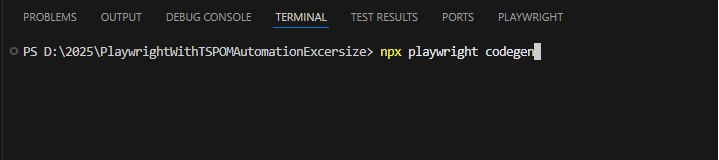
This command will open the Playwright Inspector along with the browser, and one will automatically trigger the launch of the other. By default, the browser launched is Chrome.
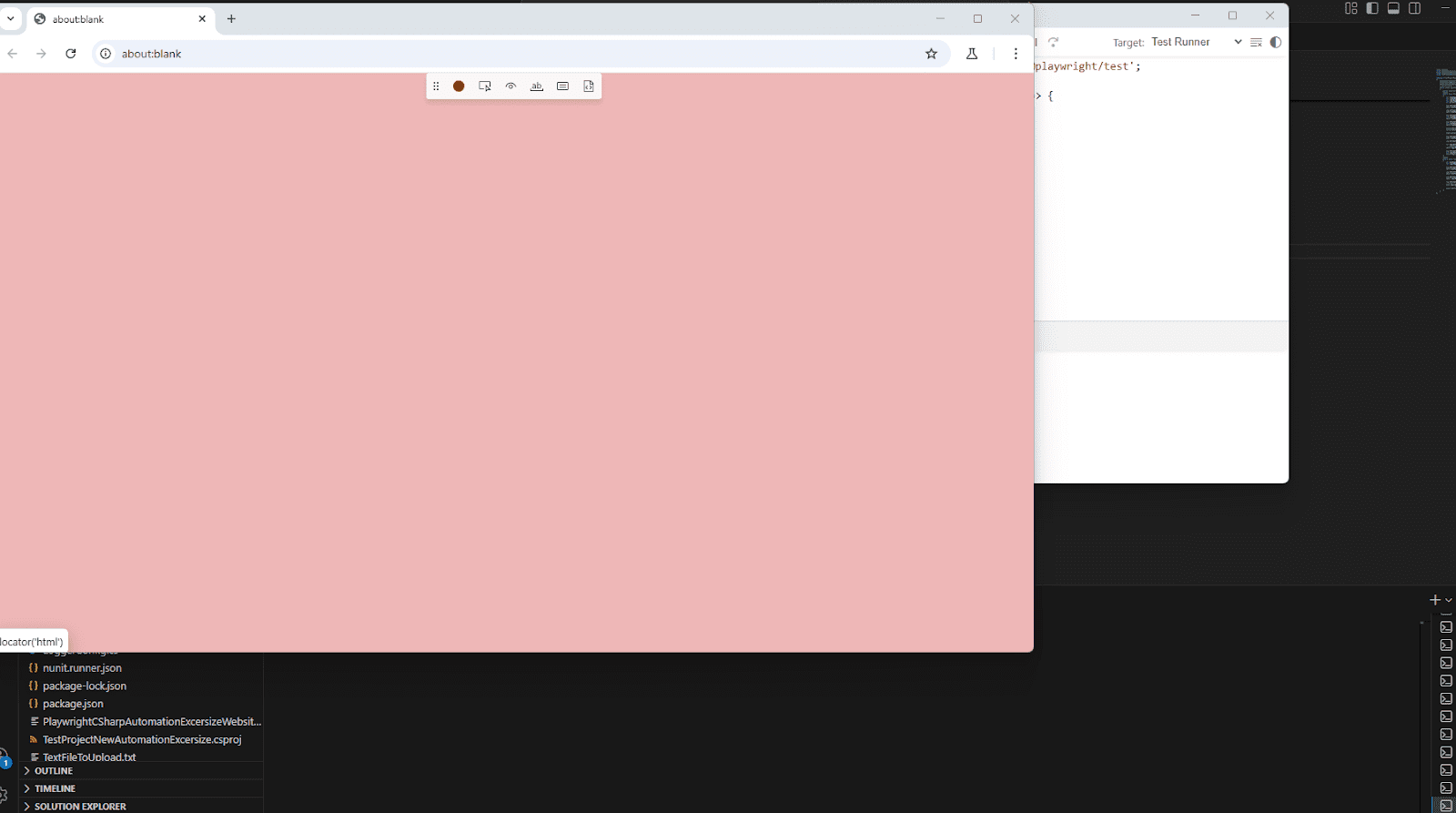
Playwright provides a dedicated Codegen command that launches:
- A browser window for interaction
- A separate window showing the generated code in real time
You can start Codegen by specifying:
- Target application URL
- Browser type (Chromium, Firefox, WebKit)
- Output language (C#)
- Headed or debug mode options
playwright codegen https://example.com --target=csharpUsing flags allows testers to customize recording behavior based on project needs, making Codegen flexible for both demos and real project exploration.
Now, let’s run the command for the project URL.

💡 Real Project Tip:
In many teams, QA engineers commonly use Codegen in headed (interactive) mode during requirement analysis or bug reproduction to visually observe application behavior while recording.
Interacting with the Web Application
Once Codegen is running, you simply use the application like a real user.
Common interactions include:
- Navigating between pages
- Typing text into input fields
- Clicking buttons and links
- Selecting dropdown values
- Checking checkboxes or radio buttons
Every action you perform is instantly captured by Playwright and converted into automation steps. There is no need to pause or manually trigger recording; everything happens automatically.
Real-Time Example:
While testing a login flow:
- You type an email and a password
- Click the Login button
- Navigate to the dashboard
Playwright records each step and generates corresponding automation code without any manual scripting.
Watching Playwright auto-generate code in real-time
One of the strongest advantages of Playwright Codegen is real-time code generation.
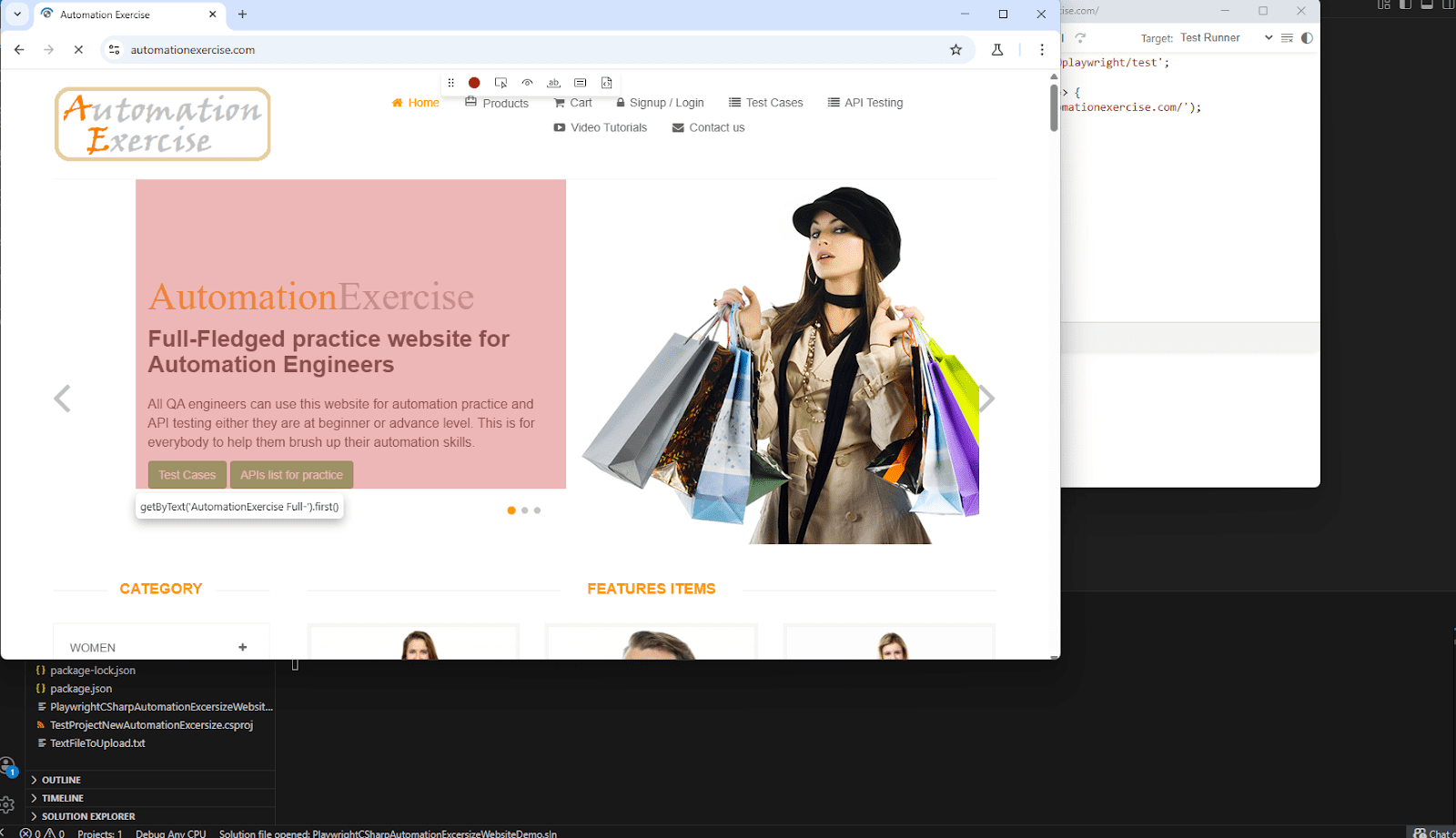
Navigating to the website using the command.
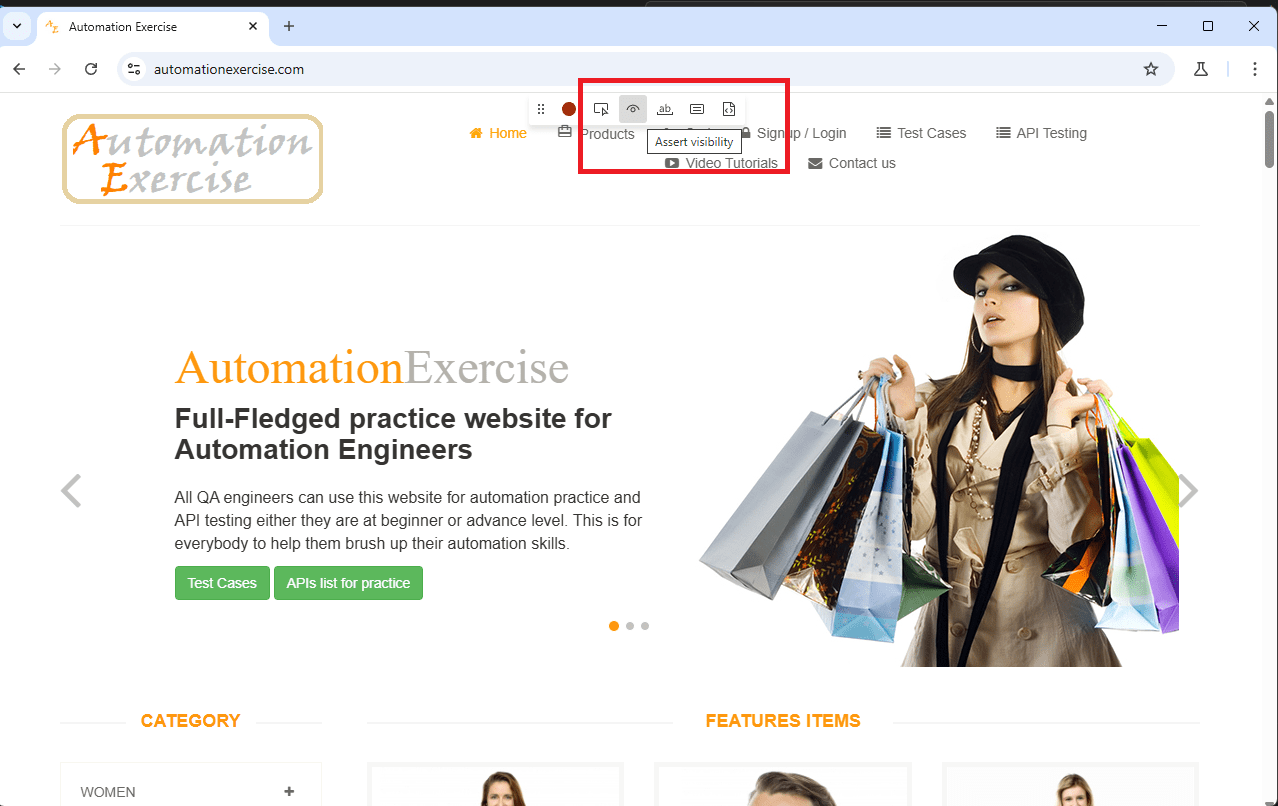
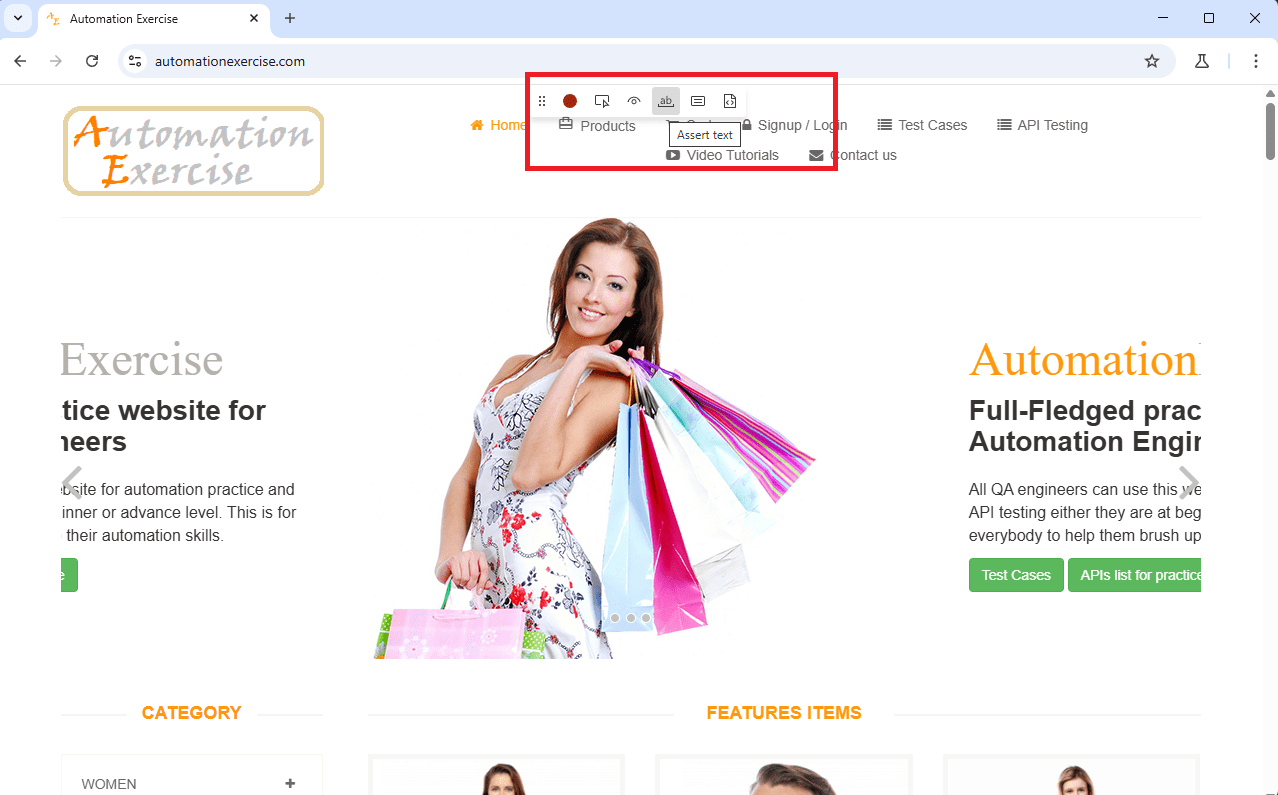
In Playwright Inspector, we can stop recording by clicking on the ‘Record’ button in red and start recording by clicking on the same button.
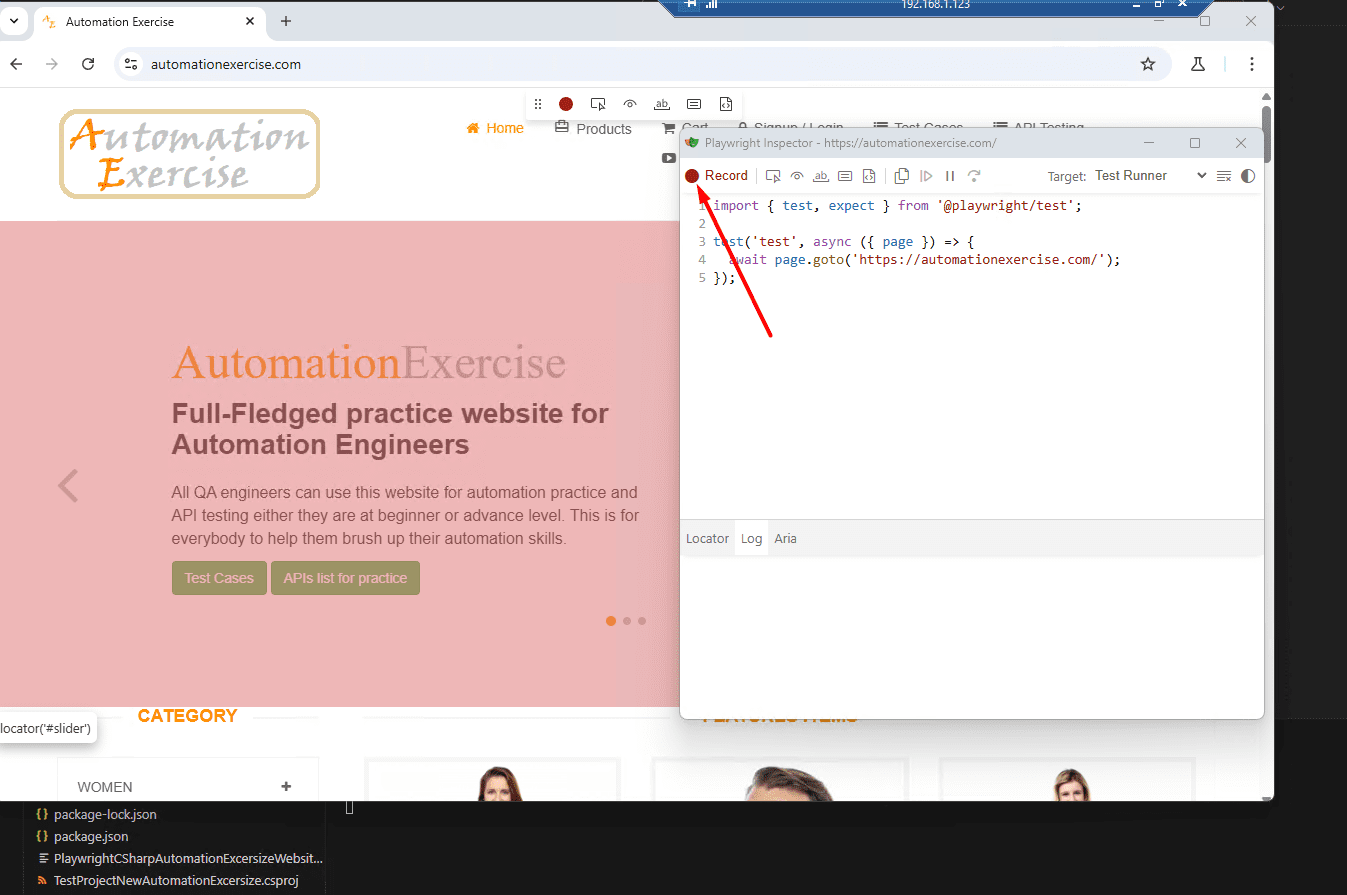
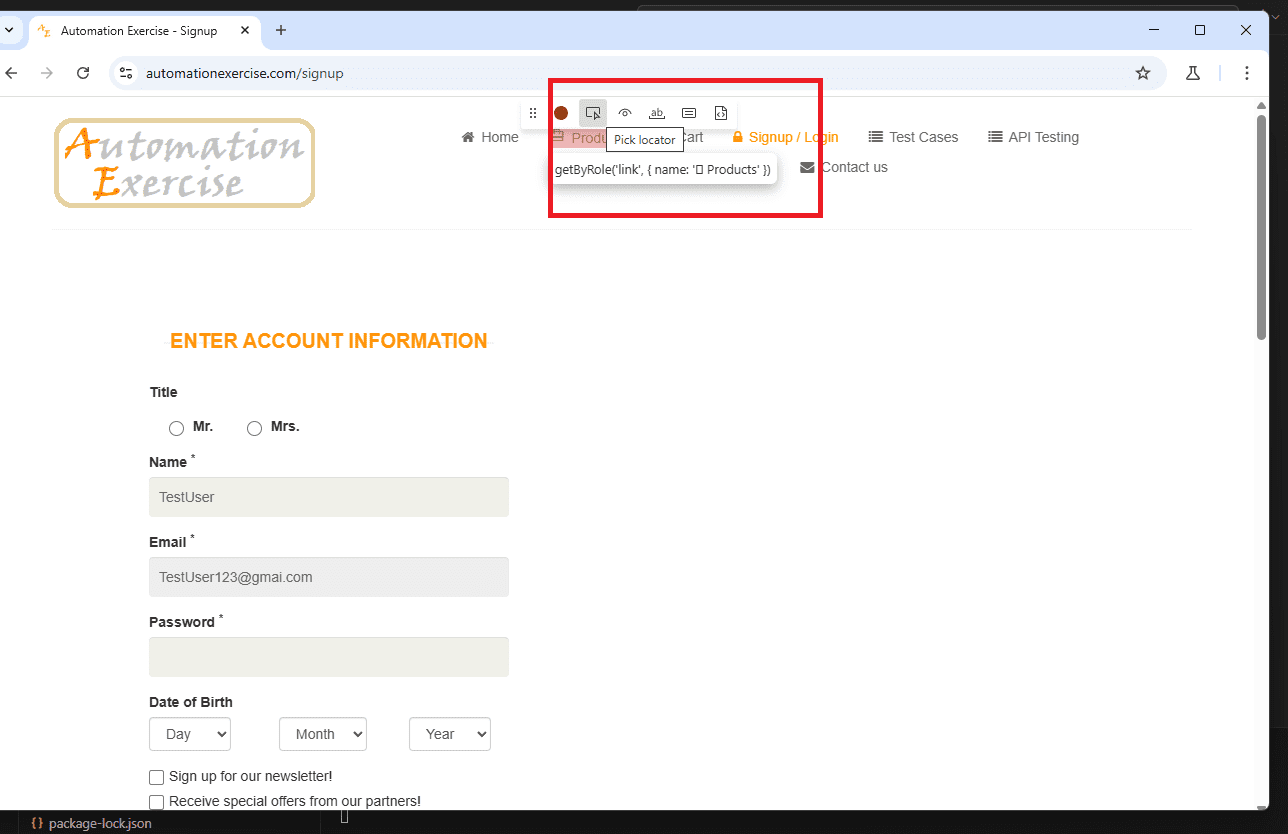
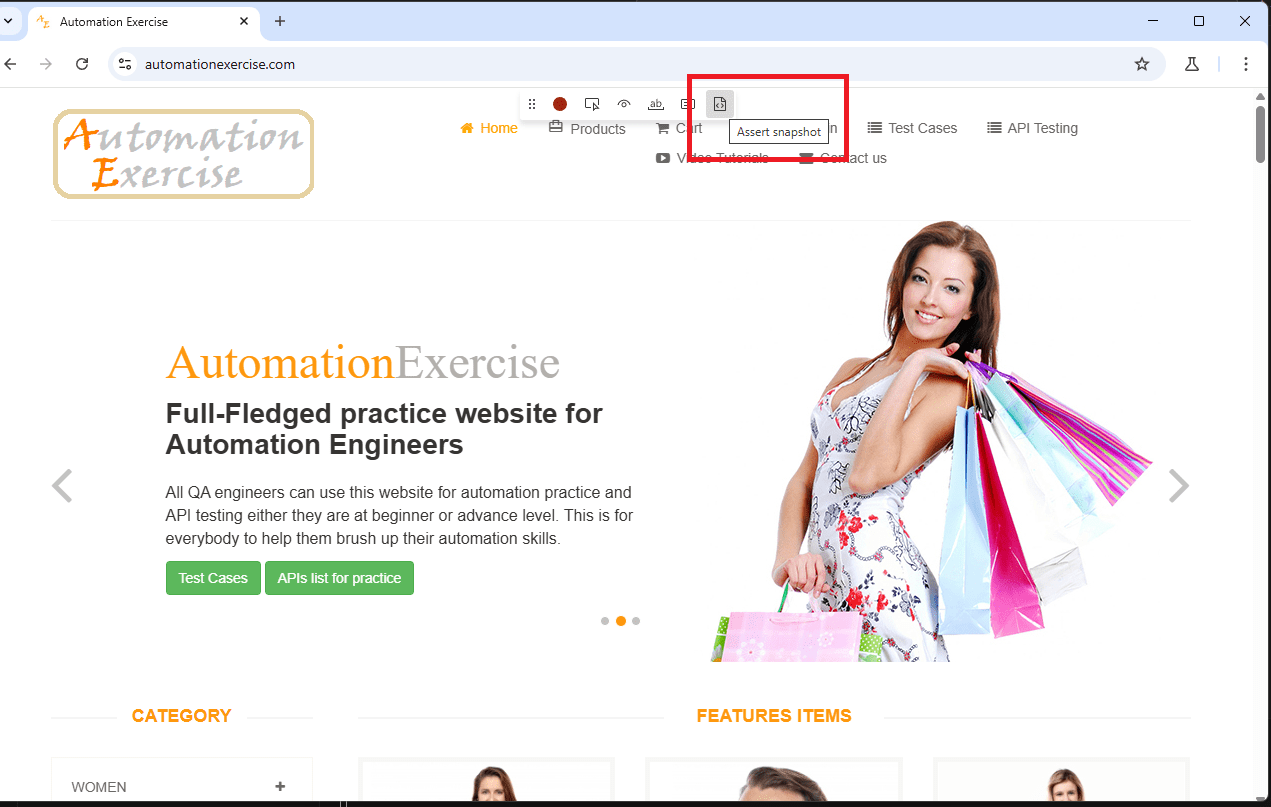
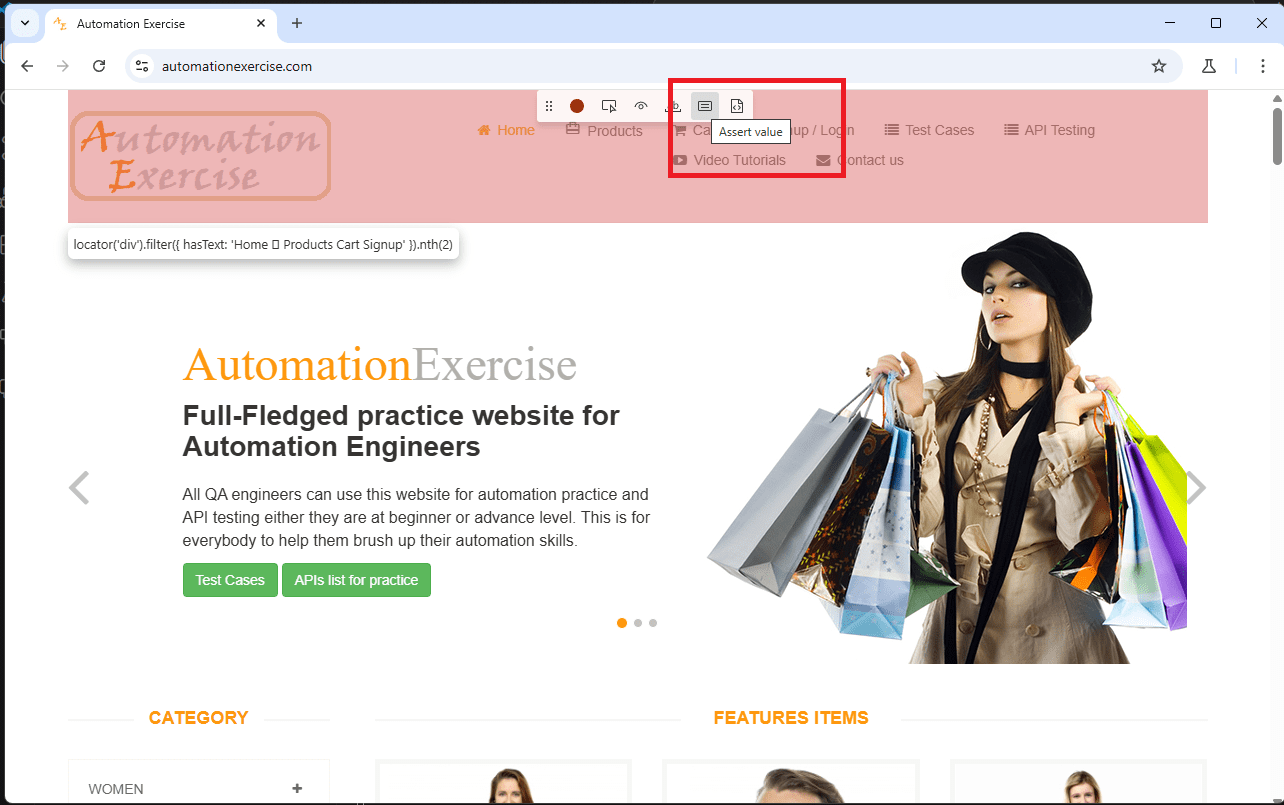
Here are the buttons from which we can perform the actions.
1. Assert visibility
2. Pick Locator
3. Assert snapshot
4. Assert value
5. Assert text
As you interact with the UI:
- Locators are auto-selected intelligently
- Actions are synchronized using auto-waiting
- Codegen may add basic assertions such as URL checks or visibility validations, which should always be reviewed and enhanced manually.
- Code remains clean and readable
This instant feedback helps testers:
- Understand locator strategies
- Learn Playwright syntax naturally
- Identify UI element behavior quickly
For beginners, this acts as a live learning tool.
For experienced testers, it becomes a debugging and discovery assistant.
Saving and Exporting the Generated Script
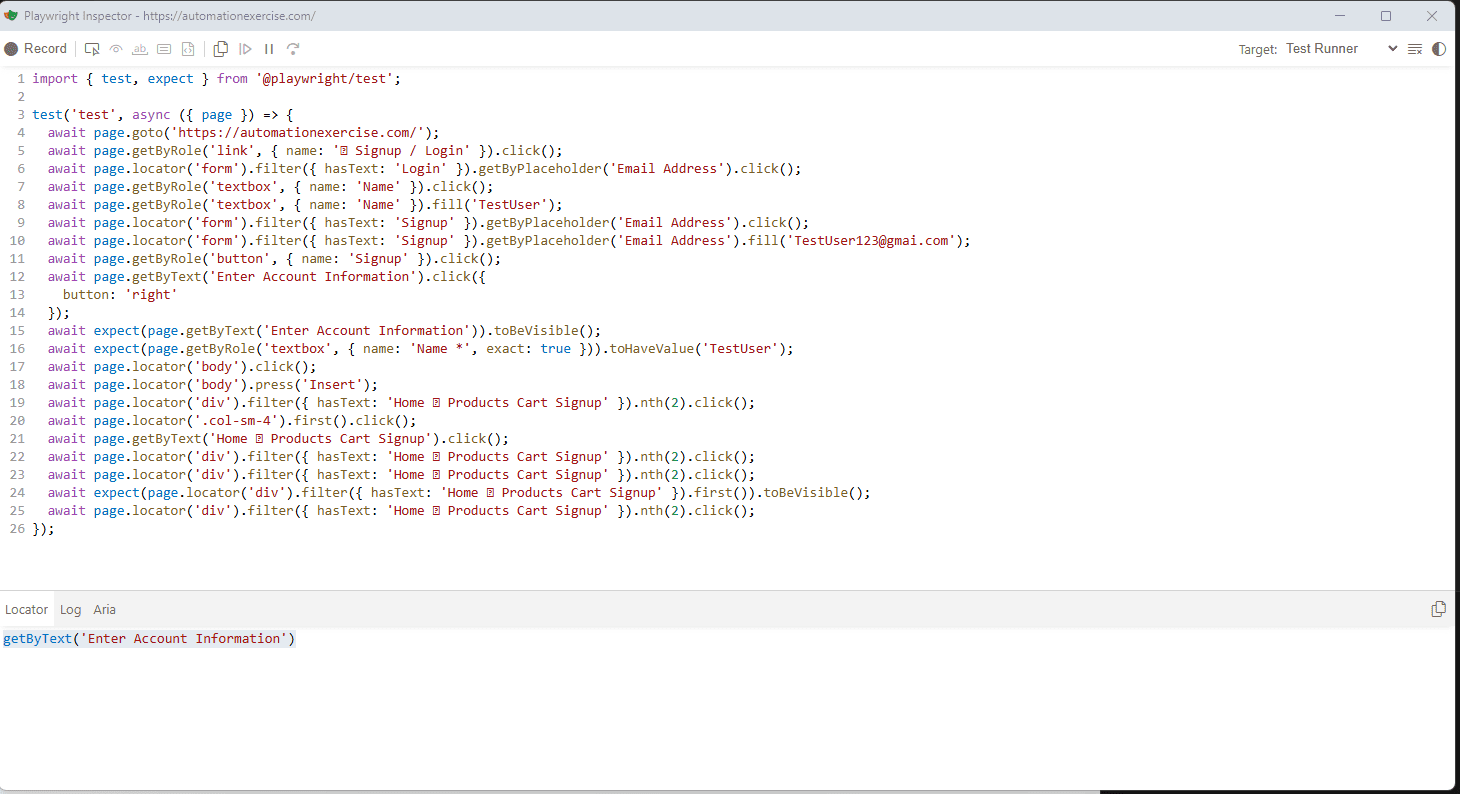
After completing your test flow, Playwright allows you to:
- Copy the generated script
- Save it into your automation project
- Refactor it into Page Object Model (POM)
- Enhance assertions and validations
It is recommended not to push recorded scripts directly to production. Instead:
- Clean up duplicated steps
- Move locators to page classes
- Convert flows into reusable methods
Reviewing the Generated Script in Playwright
Why Reviewing the Generated Script is Important
Once you finish recording a test using Playwright Record and Play (Codegen), the next critical step is reviewing the generated script.
This step helps QA engineers understand:
- How Playwright structures automation code
- Which actions and assertions are generated
- How selectors are identified
- What needs refactoring before production use
Skipping this step can lead to unmaintainable and flaky automation tests in real projects.
Understanding the Basic Script Structure
A Playwright-generated script usually follows a clear and readable structure, even for beginners.
At a high level, the script contains:
- Browser and page initialization
- Navigation to the target URL
- User actions (click, fill, select, etc.)
- Assertions to verify expected behavior
This structure makes it easier for testers to:
- Read the recorded code
- Identify test flow quickly
- Modify steps without confusion
Beginner Tip:
Reading recorded scripts is one of the fastest ways to learn Playwright syntax naturally.
Commonly generated actions and assertions
During recording, Playwright automatically generates commonly used UI interaction actions.
🔹 Goto
Used to navigate to a specific page or URL.
- Helps ensure the test always starts from a known state.
🔹 Click
- Uses smart locators to ensure stability.
Generated when interacting with buttons, links, icons, or clickable elements.
🔹 Fill
Generated when typing text into input fields.
- Handles synchronization automatically.
🔹 Locator Usage
Playwright relies heavily on the locator API.
- Locators are reusable and auto-wait for elements
- They reduce flaky test behavior
Real-Time Example:
When recording a login flow, Playwright generates:
- Navigate to the login page
- Fill in actions for username and password
- Click on the login button
All actions are synchronized without manual waits.
Understanding Generated Assertions (Expect)
Assertions are critical for validating application behavior.
Playwright Codegen typically generates:
- Visibility checks
- Text validations
- URL validations
These assertions ensure that:
- The action performed had the expected result
- The application reached the correct state
⚠ Important Note:
Generated assertions are often basic and should be reviewed and enhanced based on real test scenarios.
How Playwright identifies and generates selectors automatically
One of the strongest features of Playwright Codegen is smart selector generation.
Playwright prefers:
- Role-based selectors
- Text-based selectors
- Label-based selectors
- Test IDs (if available)
It avoids brittle selectors like:
- Absolute XPath
- Index-based selectors (unless necessary)
🔍 Behind the Scenes Insight:
When you click a button labeled “Submit”, Playwright attempts to identify it using:
- Accessible role
- Visible text
- Semantic attributes
This approach improves test stability and maintainability.
Real-Time Project Example: Selector Discovery
In real projects, QA engineers often use Codegen to:
- Discover the most stable selectors
- Understand the DOM structure quickly
- Handle dynamic UI elements
For example:
- A dynamic button with changing IDs
- A dropdown rendered using JavaScript frameworks
Recording helps identify which selector Playwright trusts the most, saving debugging time.
Refining and Improving the Recorded Code in Playwright
Playwright’s Record and Play (Codegen) feature generates working automation scripts, but these scripts are not always production-ready.
In real-world projects, QA engineers must refine recorded code to ensure:
- Better readability
- Long-term maintainability
- Stability across environments
- Scalability for large test suites
Refinement is the step where basic recorded scripts turn into professional automation code.
Cleaning redundant lines, waits, and repetitive steps
Recorded scripts often contain:
- Repeated navigation steps
- Unnecessary clicks
- Duplicate locator definitions
- Auto-generated waits that are not required
These lines increase complexity and reduce clarity.
Best Practice:
- Remove duplicate actions
- Keep only essential steps
- Group related actions into logical flows
🧠 Real-Time Example:
If Codegen records navigation to the same page multiple times during a flow, experienced testers keep only one navigation step and remove the rest.
Handling Unnecessary Waits and Synchronization
Playwright automatically handles waiting using auto-waiting, which means:
- Explicit waits are usually not required
- Hardcoded delays should be avoided
Recorded scripts may still include:
- Extra waits
- Unnecessary checks
Improvement Tip:
- Trust Playwright’s built-in synchronization
- Replace fixed waits with meaningful conditions when needed
This reduces flakiness and speeds up test execution.
Writing More Meaningful Assertions Manually
Generated assertions are often basic and may not fully validate business logic.
To improve test reliability:
- Add validations based on expected outcomes
- Verify user-visible results
- Assert critical business rules
Real-Time Project Example:
Instead of just checking page navigation after login, testers add assertions to validate:
- Logged-in username
- Dashboard widgets
- Role-based access visibility
This makes tests more valuable and closer to real user expectations.
Improving Flaky or Dynamic Selectors
Dynamic UI elements can cause recorded selectors to fail over time.
Common issues include:
- Auto-generated IDs
- Index-based selectors
- Dynamic class names
Best Practice for Selector Improvement:
- Prefer role-based or text-based selectors
- Use stable attributes like labels or test IDs
- Avoid deeply nested selectors
🎯 Real-World Insight:
Many teams record tests mainly to discover selectors, then manually replace them with more stable and readable locator strategies.
Making the script more readable, maintainable, and scalable
Making the Script More Readable
Readable automation code is easier to:
- Review
- Debug
- Maintain
- Share with team members
To improve readability:
- Use meaningful method names
- Add logical spacing between steps
- Remove unnecessary inline code
- Follow consistent naming conventions
This is especially important when junior QA engineers join the project.
Making the Script Maintainable and Scalable
Scalability is critical for long-term automation success.
To make recorded scripts scalable:
- Break long scripts into reusable methods
- Apply Page Object Model (POM)
- Centralize locators
- Avoid hardcoded test data
📌 Production Tip:
Recorded scripts are best used as building blocks, not final test cases.
Moving Toward Framework-Level Code
Converting recorded scripts into reusable test components
Recorded scripts generated by Playwright Codegen usually contain a single, end-to-end flow. To move toward framework-level automation, these scripts must be broken down into reusable test components.
At this stage, QA engineers:
- Identify repeated actions such as login, navigation, or form submission
- Extract those actions into reusable methods
- Separate test flow logic from UI interaction logic
Real-time example:
If multiple recorded tests include the same login steps, those steps are converted into a single reusable login component that can be used across smoke, regression, and sanity test suites.
This approach:
- Reduces code duplication
- Improves maintainability
- Makes test execution more efficient
Organizing tests using the Page Object Model (POM)
Recorded scripts are typically written directly inside test files, which becomes difficult to maintain as the test suite grows. Organizing tests using the Page Object Model (POM) helps solve this problem.
Using POM:
- Each page has its own class containing locators and actions
- Test files focus only on test logic and assertions
- UI changes are handled by updating page classes, not every test
Real-time example:
All login-related locators and actions (username, password, submit button) are stored in a Login page class, which is reused by multiple test cases.
This structure:
- Improves readability
- Supports scalability
- Makes collaboration easier within QA teams
Adding helper methods, utilities, and reusable locators
Framework-level automation requires shared components beyond page classes. This is where helper methods, utilities, and reusable locators become important.
Common additions include:
- Login and session helpers
- Navigation utilities
- Environment configuration helpers
- Reusable wait and retry logic
Reusable locators are:
- Centralized in one place
- Given meaningful and consistent names
- Shared across multiple test cases
Real-time example:
Environment-specific URLs and credentials can be managed through utility files, allowing the same tests to run seamlessly in QA, UAT, or production environments.
Parameterizing input data for data-driven testing
Recorded scripts often contain hardcoded test data, which limits test coverage. Parameterizing input data enables data-driven testing and makes automation more flexible.
With data-driven testing:
- One test run with multiple data sets
- Input values are passed dynamically
- Edge cases are easily covered
Real-time example:
A single login test can validate:
- Valid users
- Invalid credentials
- Locked accounts
- Different user roles
This results in:
- Higher test coverage
- Fewer test scripts
- More efficient automation
Advanced Recording Capabilities
Recording using a specific browser
Playwright allows advanced control while recording tests by letting you choose a specific browser or device configuration. This is especially useful when applications behave differently across browsers or on mobile devices.
Using browser-specific recording:
- Helps validate cross-browser behavior early
- Allows testing browser-specific issues during recording
- Supports mobile device emulation, which is useful for validating layouts, responsiveness, and basic interactions, but it does not replace real-device testing
Real-time example:
A QA engineer records a checkout flow in Chromium on desktop and then repeats it in mobile emulation mode to identify layout or interaction issues that appear only on smaller screens.
This approach improves test coverage and ensures consistency across platforms.
Generating language-specific code
Playwright supports generating automation code in multiple languages. While recording, you can specify the target programming language for the generated script.
This capability:
- Helps teams follow their existing tech stack
- Allows comparison of generated code across languages
- Makes Playwright suitable for diverse QA teams
Real-time example:
A team maintaining a dot NET-based automation framework records tests using the C# target, while another team working with JavaScript compares the generated structure for shared test strategies.
Despite syntax differences, the underlying test logic remains consistent across languages.
Observing API calls and network traffic during recording
🔴 Issue:
Codegen does NOT generate Playwright API test code
It only shows network activity in Inspector
API testing still requires manual scripting
✅ Correct framing:
Codegen helps observe API calls, not record them as API tests.
Real-time example:
While recording a search feature, a tester observes which API endpoint is called and validates that the correct request parameters are sent when a user submits a search query.
This insight bridges the gap between UI testing and API testing.
Custom selector strategies (data-test id, role locators, accessibility-first selectors)
Advanced recording also supports custom selector strategies, which are critical for stable and maintainable automation.
Preferred selector strategies include:
- data-testid attributes for stability
- Role-based locators for accessibility alignment
- Text and label-based selectors for readability
Using these strategies:
- Reduces flaky tests
- Improves test reliability
- Encourages accessibility-first automation practices
Real-time example:
In enterprise applications, developers add data-testid attributes specifically for automation, and testers rely on them during recording to ensure selectors remain stable across UI changes.
Integrating with Unit Test Frameworks
Running recorded tests with NUnit/xUnit/MSTest
Once Playwright recorded scripts are refined and framework-ready, the next step is integrating them with unit test frameworks such as NUnit, xUnit, or MSTest. This integration allows recorded tests to be executed, grouped, and reported like standard automated test cases.
When running recorded tests with these frameworks:
- Tests are executed using familiar test runners
- Assertions are handled consistently
- Results are easily visible in IDEs and CI pipelines
Real-time example:
In many .NET-based projects, teams prefer NUnit or xUnit. Recorded Playwright tests are placed inside test classes, enabling QA engineers to run smoke or regression suites with a single command or from Visual Studio’s Test Explorer.
This integration ensures that recorded tests behave like first-class citizens in the automation ecosystem.
Structuring your test folder, fixtures, and hooks
As the number of recorded and refactored tests grows, proper test folder structure and lifecycle management become critical.
A well-structured setup includes:
- Separate folders for tests, pages, utilities, and test data
- Fixtures for browser and context initialization
- Hooks for setup and teardown logic
Fixtures and hooks help:
- Avoid repetitive browser setup code
- Ensure clean test execution
- Improve test stability
Real-time example:
In real projects, teams usually initialize one browser per worker and create a fresh browser context per test. This ensures proper isolation while still keeping execution fast and CI-friendly.
This approach:
- Reduces execution time
- Improves consistency
- Makes tests easier to maintain
Running tests locally vs. in CI (GitHub Actions, Azure DevOps, Jenkins, GitLab CI)
Recorded and refined Playwright tests must run reliably in both local environments and CI pipelines.
Running tests locally
Local execution helps QA engineers:
- Debug failures quickly
- Validate changes before committing
- Experiment with recorded scripts
Local runs are typically used during development and test refinement.
Running tests in CI
CI execution ensures:
- Tests run automatically on every build or pull request
- Early detection of regressions
- Consistent validation across environments
Real-time example:
A team runs Playwright tests locally while developing features. Once code is pushed, the same tests run automatically in GitHub Actions or Azure DevOps as part of the CI pipeline, ensuring no breaking changes reach production.
This dual execution strategy balances developer productivity and automation reliability.
Best Practices
Treat recording as a starting point—not a final solution
Playwright’s recording feature is extremely powerful for quickly capturing user flows, but recorded scripts should never be considered production-ready automation.
Recording is best used to:
- Understand application behavior
- Capture base user journeys
- Generate an initial working script
After recording, scripts must be reviewed, refactored, and optimized to match real-world automation standards.
Real-time example:
A recorded checkout flow may work initially but include unnecessary steps, duplicate actions, or weak assertions. Refining this script ensures it remains reliable even when the UI evolves.
Prefer stable locators and accessibility-based selectors
Recorded scripts often generate selectors based on dynamic attributes or deep DOM structures. These selectors are fragile and can easily break.
Best practices include:
- Using data-testid attributes
- Leveraging role-based and accessibility locators
- Avoiding absolute XPath or index-based selectors
Accessibility-based selectors not only improve stability but also align with inclusive design principles.
Real-time example:
Instead of targeting a button using its position, using its role and accessible name ensures the test remains stable even if the UI layout changes.
Keep test data external (JSON/config/environment variables)
Hardcoding values such as usernames, passwords, and URLs inside recorded scripts makes tests rigid and difficult to maintain.
Externalizing test data allows:
- Easy updates without modifying test logic
- Environment-based configuration (QA, Staging, Production)
- Secure handling of sensitive data
Common approaches include:
- JSON files for test data
- Configuration files for environment setup
- Environment variables for secrets
Real-time example:
The same login test can run against multiple environments by simply switching configuration values rather than rewriting the script.
Maintain reusable methods instead of repeating recorded code
Recorded scripts often duplicate actions like login, navigation, or form submission across multiple tests.
To improve maintainability:
- Extract repeated actions into reusable methods
- Centralize common workflows in helper classes or page objects
- Keep test cases focused on validation, not setup logic
Real-time example:
Instead of repeating login steps in every test, a single reusable login method can be called wherever authentication is required.
Prioritize test stability and script readability
A test that passes once but fails intermittently is worse than no test at all. Stability and readability must always be top priorities.
This can be achieved by:
- Writing clear and meaningful assertions
- Avoiding unnecessary waits and sleeps
- Keeping code clean and well-structured
- Using descriptive method and variable names
Readable scripts:
- Help future maintainers understand test intent
- Reduce debugging time
- Scale better as the test suite grows
Real-time example:
A readable test clearly shows what is being tested and why, making failures easier to analyze during CI runs.
Common Pitfalls & How to Fix Them
Handling flaky selectors and dynamic elements
One of the most common issues with recorded Playwright scripts is flaky selectors. During recording, Playwright may generate selectors based on dynamic attributes such as auto-generated IDs, inline styles, or deep DOM paths. These selectors can change frequently, causing tests to fail even when the application behavior is correct.
How to fix this:
- Replace dynamic selectors with stable attributes like data-testid
- Prefer role-based and accessibility selectors (buttons, links, inputs with labels)
- Avoid index-based or absolute XPath selectors
- Validate selectors against UI changes before committing them to the framework
Real-time example:
A recorded selector works today but fails after a UI redesign. Switching to an accessibility-based locator keeps the test stable even when layout or styling changes.
Removing duplicated or unnecessary recorded steps
Recorded scripts often include redundant actions such as:
- Multiple navigations to the same page
- Repeated clicks on the same element
- Implicit waits and retries that are not needed
These extra steps make tests longer, harder to read, and slower to execute.
How to fix this:
- Review the entire recorded script line by line
- Remove duplicate navigation or interaction steps
- Keep only the steps that directly contribute to test validation
- Combine sequential actions where possible
Real-time example:
A recorded test clicks a menu, reloads the page, and clicks the same menu again. Removing redundant steps improves execution speed and clarity.
Managing long test flows and large recorded files
Recording an entire end-to-end journey in one session can result in very long test files that are difficult to maintain and debug.
Large recorded tests are often:
- Test multiple scenarios in a single script
- Mix setup, execution, and validation logic
- becomes fragile when any part of the flow changes
How to fix this:
- Break long flows into smaller, focused test cases
- Separate setup steps (like login) from validation logic
- Convert common flows into reusable components or helper methods
- Keep each test responsible for validating a single behavior
Real-time example:
Instead of one massive test covering login, product selection, checkout, and logout, splitting them into independent tests makes failures easier to isolate and fix.
Debugging record-based tests and improving reliability
Recorded tests may fail due to timing issues, UI transitions, or dynamic content loading. Without proper debugging, these failures can be hard to diagnose.
How to fix this:
- Use Playwright’s debugging tools to inspect failures
- Add meaningful assertions instead of relying on implicit behavior
- Ensure elements are ready before interacting with them
- Review auto-generated waits and remove unnecessary ones
Real-time example:
A test fails intermittently because a button appears slightly late. Improving synchronization and adding a clear assertion resolves the flakiness.
Conclusion
Record & Play is a powerful way to kickstart Playwright automation by quickly converting real user actions into executable tests. It helps beginners reduce the learning curve and enables experienced QA engineers to accelerate test creation while understanding application flows and locator strategies. When combined with manual scripting, recorded tests become more stable, readable, reusable, and aligned with framework standards. The real value emerges when these refined tests are integrated into CI/CD pipelines, enabling early regression detection, consistent quality checks, and confidence in frequent releases ultimately helping teams build a scalable, maintainable, and future-ready Playwright automation framework.
Witness how our meticulous approach and cutting-edge solutions elevated quality and performance to new heights. Begin your journey into the world of software testing excellence. To know more refer to Tools & Technologies & QA Services.
If you would like to learn more about the awesome services we provide, be sure to reach out.
Happy Testing 🙂