


As businesses continue to deliver seamless digital experiences, the way we test applications has become more critical than ever. “web app testing” and “mobile app testing” at the start in this way to improve keyword relevance and make the introduction easier to read.
To ensure consistent quality, QA teams must adapt their strategies depending on whether they’re testing a mobile app or a web app. The differences go far beyond screen size-ranging from device fragmentation and operating system diversity to installation flows, hardware integration, and even network variability. These challenges mean that the same QA approach cannot be applied to both environments without risking missed bugs or poor user experiences.
If you’re interested in a foundational understanding of QA practices, check out our earlier blog on Everything You Need to Know About Functional Testing: A Beginner’s Guide
In this blog, we’ll explore the key differences between mobile and web app testing, including device and OS diversity, installation and release processes, UI responsiveness, hardware-specific testing, performance constraints, and network considerations. We’ll also cover practical insights into build distribution, release workflows, and do’s and don’ts to help QA engineers deliver more reliable applications across platforms.
- Brief overview of mobile apps vs. web apps
- Why Testing Strategies Must Differ for Mobile and Web Apps
- Device Fragmentation & OS Diversity
- Installation & Update Process
- UI Responsiveness & User Interactions in App Testing
- Hardware & Sensor Integration
- Performance Constraints
- Network Conditions
- Platform-Specific Nuances
- Build Distribution for Testing
- The Mobile Release Process
- Do’s and Don’ts in Mobile App Testing
- Q&A: Common Mobile Testing Questions
- Conclusion
Brief overview of mobile apps vs. web apps
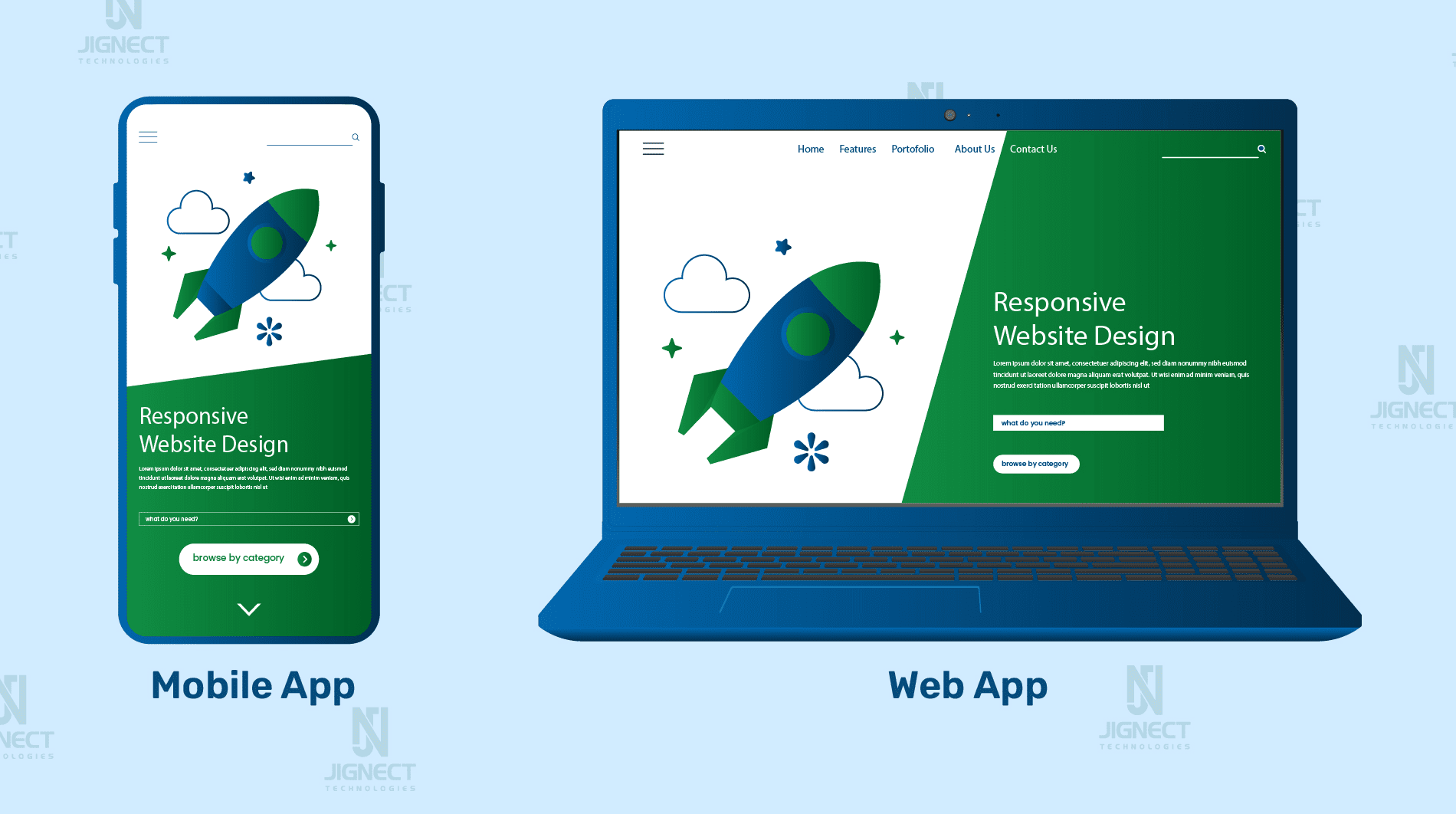
In today’s digital-first world, applications come in two dominant forms: mobile apps and web apps. While both aim to deliver seamless user experiences, the environments in which they run are fundamentally different and so are the testing strategies needed to ensure their quality.
A web application typically runs in a browser and is accessed through a URL. Because browsers like Chrome, Safari, or Firefox follow established web standards, QA teams can focus on cross-browser compatibility, UI responsiveness across desktop and mobile viewports, and ensuring that backend services scale under varying loads. For example, a banking web portal might need testing to confirm it renders correctly in Chrome on Windows, Safari on macOS, and Firefox on Linux.
In contrast, mobile applications are tightly coupled with the device and operating system they run on. An Android app that works perfectly on a Google Pixel might behave differently on a Samsung device with a custom Android skin, or even crash on an older device with limited memory. Similarly, an iOS app might require testing across both iPhone and iPad form factors, and across multiple iOS versions (e.g., iOS 15 vs. iOS 17). On top of UI concerns, mobile QA teams must also validate hardware-dependent features like GPS, cameras, fingerprint sensors, and accelerometers elements that web applications rarely interact with.
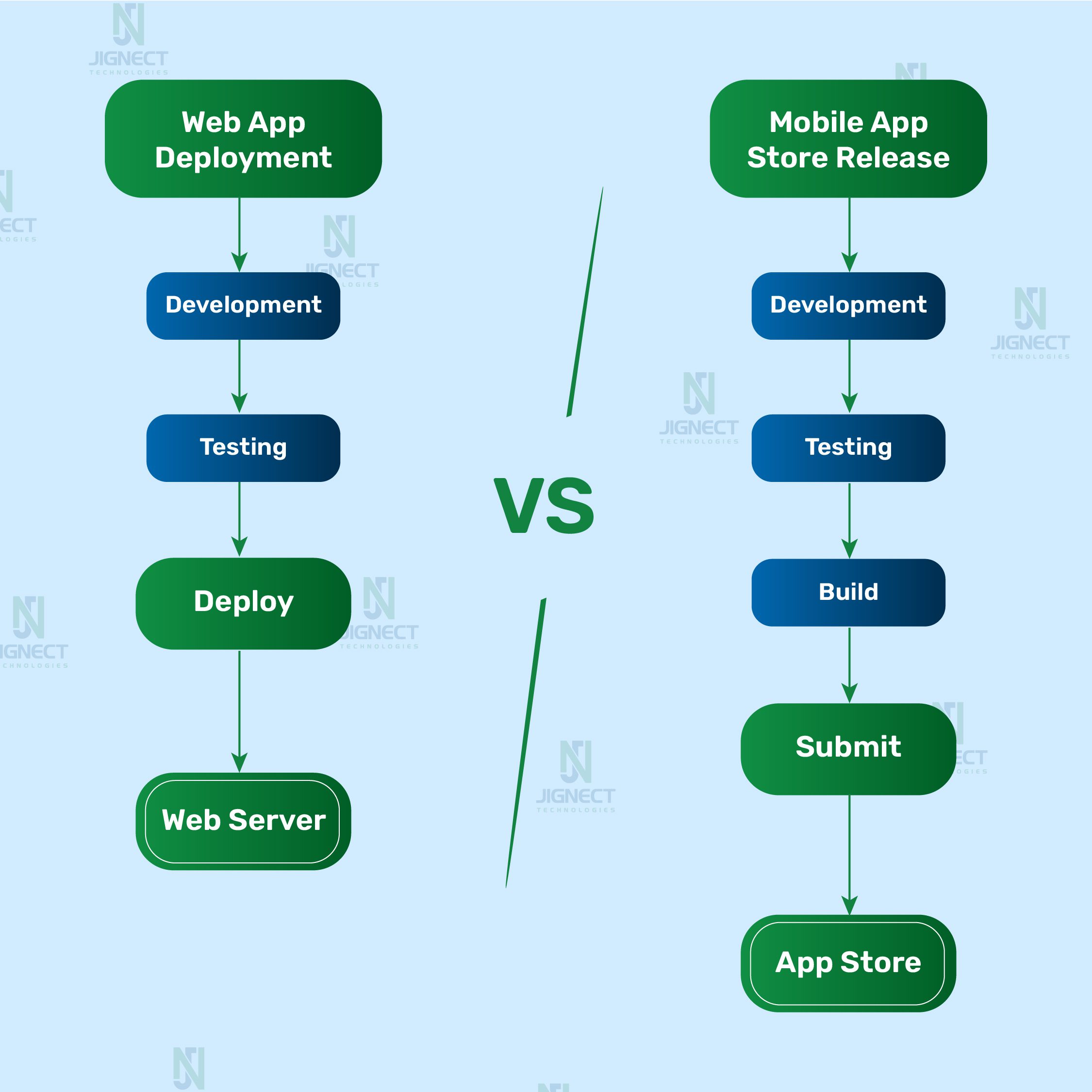
Another key distinction lies in deployment and updates. A web app update is instantly available to all users once deployed to the server. By contrast, mobile app updates require packaging (APK or AAB for Android, IPA for iOS), signing, distribution via app stores or internal tools, and in the case of iOS, passing Apple’s review process. For example, a new feature in a food delivery app might take hours (on Google Play) or days (on the App Store) before users see it, which makes thorough QA critical to avoid embarrassing or costly bugs.
Ultimately, while both mobile and web applications share some common testing principles, the scope, environment, and challenges differ drastically. That’s why QA engineers and development teams need to adapt their strategies to the platform they’re targeting whether it’s testing Safari rendering quirks for a SaaS dashboard or validating battery consumption on a budget Android device.
Why Testing Strategies Must Differ for Mobile and Web Apps
At first glance, it might seem that testing a mobile app and testing a web app are similar and both need functional validation, usability checks, and performance testing. However, the environments in which these applications run are so different that using the same QA strategy for both would miss critical issues.
Different Platforms, Different Challenges
- Web Applications live in browsers, which are designed to follow common standards like HTML, CSS, and JavaScript. This means that while testers must account for variations between browsers (e.g., Chrome vs. Firefox vs. Safari), the overall environment is fairly consistent across operating systems.
- Mobile Applications, on the other hand, are tied directly to device hardware and operating systems. An Android app might need to run on hundreds of devices with different screen sizes, chipsets, and manufacturer-specific Android skins. iOS is more consistent, but Apple maintains multiple versions of iOS, and not all users update at the same pace.
Deployment Models Influence Testing
For web apps, updates are pushed to the server and instantly available to all users. This means QA focuses on ensuring that new deployments don’t break existing functionality (regression testing) and that the app performs well across browsers and network conditions.
For mobile apps, every release must go through packaging (APK/AAB for Android, IPA for iOS), signing, and distribution. iOS apps even require Apple’s review before going live, which can take days. QA teams must therefore validate installation, upgrade paths, and uninstallation processes activities rarely needed for web apps.
Interaction and Environment
- Web testing primarily validates mouse and keyboard interactions, form inputs, and browser rendering.
- Mobile testing must account for a broader range of real-world usage: touch gestures, multi-touch, swipe actions, and device orientation changes. Testers also need to validate how apps behave when interrupted by calls, push notifications, or when network connectivity fluctuates scenarios that rarely affect web apps running in desktop browsers.
Example in Practice
Imagine a food delivery platform. On the web version, a QA engineer focuses on verifying whether the restaurant menu loads correctly in Chrome, Edge, and Safari, and whether the checkout form validates card details. On the mobile app, the same workflow must also be tested on devices with varying RAM sizes, ensuring the app handles slow 3G networks gracefully, and confirming that an incoming call during checkout doesn’t crash the app or cause data loss.
Device Fragmentation & OS Diversity
One of the most striking differences between mobile and web app testing lies in the sheer diversity of environments where these applications run. While both types of apps aim to deliver consistent user experiences, the testing approach must account for very different kinds of fragmentation.
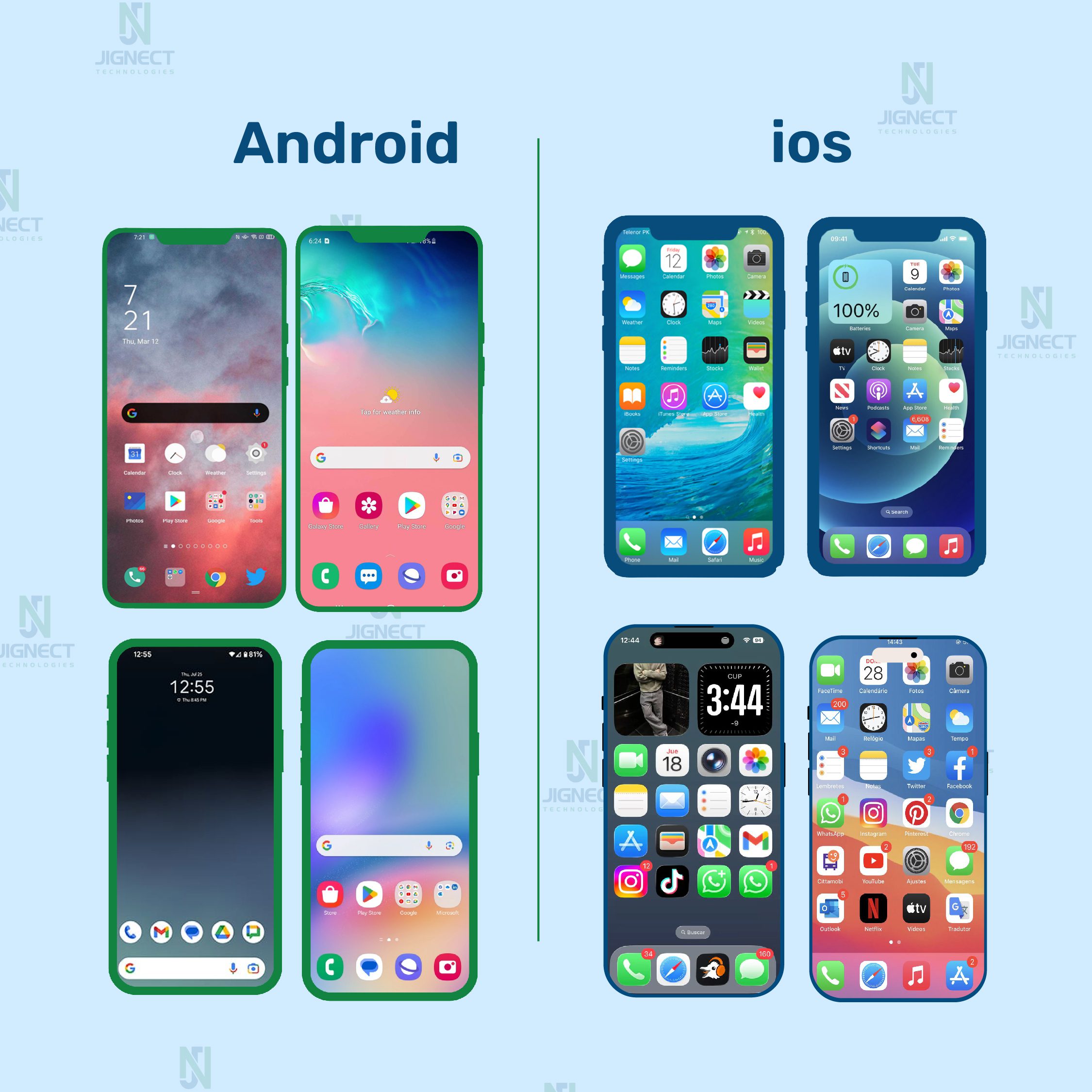
Challenges with Android (variety of devices, OS versions, OEM skins)
The Android ecosystem is notoriously fragmented. Unlike web browsers, which are relatively few and adhere to shared standards, Android apps must run on thousands of device models from different manufacturers (Samsung, Xiaomi, OnePlus, Motorola, etc.). Each device may come with:
- Different screen sizes and resolutions – from compact 5-inch budget phones to foldable devices and tablets.
- Varying hardware specs – RAM, CPU speed, GPU capabilities, and battery performance differ drastically. An animation that’s smooth on a Pixel 8 Pro may stutter on a low-cost device with only 2GB RAM.
- Custom OEM skins – Manufacturers like Samsung (One UI) or Xiaomi (MIUI) modify Android’s behavior, which can lead to unexpected UI issues or permission dialogs.
For example, a ridesharing app might crash when accessing GPS on certain Huawei models due to differences in how those devices handle location services something that wouldn’t appear in testing limited to Google’s stock Android devices.
iOS ecosystem consistency vs. fragmentation
On the Apple side, the device landscape is far less fragmented. There are fewer models (iPhone, iPad, iPod Touch), and Apple maintains tight control over both hardware and software, which means that apps typically behave more consistently across devices. However, this comes with its own challenges:
- Multiple iOS versions in the wild — while adoption of new iOS versions is faster compared to Android, not all users upgrade immediately. QA must test critical flows on older versions (e.g., iOS 15) and the latest (e.g., iOS 17).
- Strict compliance rules — Apple enforces design and permission guidelines. For instance, if your app requests access to the camera but doesn’t include a clear “purpose string” in its Info.plist file, the App Store review team may reject your build.
A real-world case: an e-commerce app that worked perfectly on iOS 17 failed to load product carousels on iOS 15 because of a subtle difference in Safari’s WebKit rendering engine. Without multi-version testing, this would have gone unnoticed until users reported it.
Web apps focus on browser and viewport compatibility
Web apps don’t escape complexity, but their fragmentation looks different. Instead of hundreds of device/OS combinations, QA focuses on:
- Cross-browser behavior ensuring consistent rendering in Chrome, Firefox, Safari, and Edge. For example, CSS grid layouts might appear correctly in Chrome but break in older versions of Internet Explorer.
- Responsive design validation testing across screen sizes (desktop, tablet, mobile browser) to confirm that buttons, menus, and forms adapt correctly.
- Unlike mobile apps, web apps rarely need to test hardware features like GPS or fingerprint sensors. Instead, the emphasis is on ensuring that the app’s front-end code adheres to web standards and gracefully degrades for unsupported features.
Key Takeaway:
- Mobile testing (especially on Android) faces significant challenges due to device and OS fragmentation, requiring extensive device coverage and real-device testing.
- iOS testing benefits from a more uniform ecosystem but demands strict compliance with Apple’s guidelines and version compatibility checks.
- Web testing focuses less on hardware diversity and more on browser compatibility and responsive design across devices.
Installation & Update Process
Web apps: instant access via browsers, no installation
Web applications are hosted on servers and accessed through browsers like Chrome, Safari, or Firefox. From a QA perspective, this simplifies deployment because:
- Users don’t need to download or install anything updates go live as soon as code is pushed to production.
- A fix for a bug (say, a checkout button not responding in an online store) can be deployed immediately, and all users will see the corrected behavior on their next refresh.
- Testing focuses on compatibility across browsers and devices rather than installation or upgrade scenarios.
Mobile apps: testing installs, first launches, upgrades, and uninstalls
- Mobile apps require packaging (APK/AAB for Android, IPA for iOS) and distribution via app stores or internal testing platforms. This creates additional QA responsibilities:
- Installation testing: Validate that the app installs smoothly on a variety of devices and OS versions. For example, check what happens if a user has limited storage or if the download is interrupted mid-way.
- First-time launch: Test permission requests (camera, location, notifications, etc.) to ensure the app handles both “Allow” and “Don’t Allow” gracefully. A map app, for instance, should still open and show UI even if location is denied.
- Upgrade flows: Confirm that updating from version 1.0 to 1.1 doesn’t wipe saved preferences or corrupt data. For example, a fitness app should preserve the user’s past workout history after an update.
- Uninstall/reinstall: Ensure uninstalling removes local data correctly, and reinstalling re-syncs cloud data without errors.
Importance of verifying smooth update flows
Unlike web apps, mobile apps depend on app store approvals and user actions to roll out updates. On Google Play, updates usually appear within hours, but on Apple’s App Store, the review process can take a day or longer. This delay raises the stakes: a critical bug that slips through QA can impact thousands of users before a fix becomes available.
- Example: If a mobile banking app release accidentally introduces a login bug, users may be locked out for days until Apple approves a patch. This not only frustrates customers but can damage brand reputation.
- That’s why QA teams must thoroughly test installation, first-use scenarios, and upgrade paths to catch potential blockers before a build is submitted.
UI Responsiveness & User Interactions in App Testing
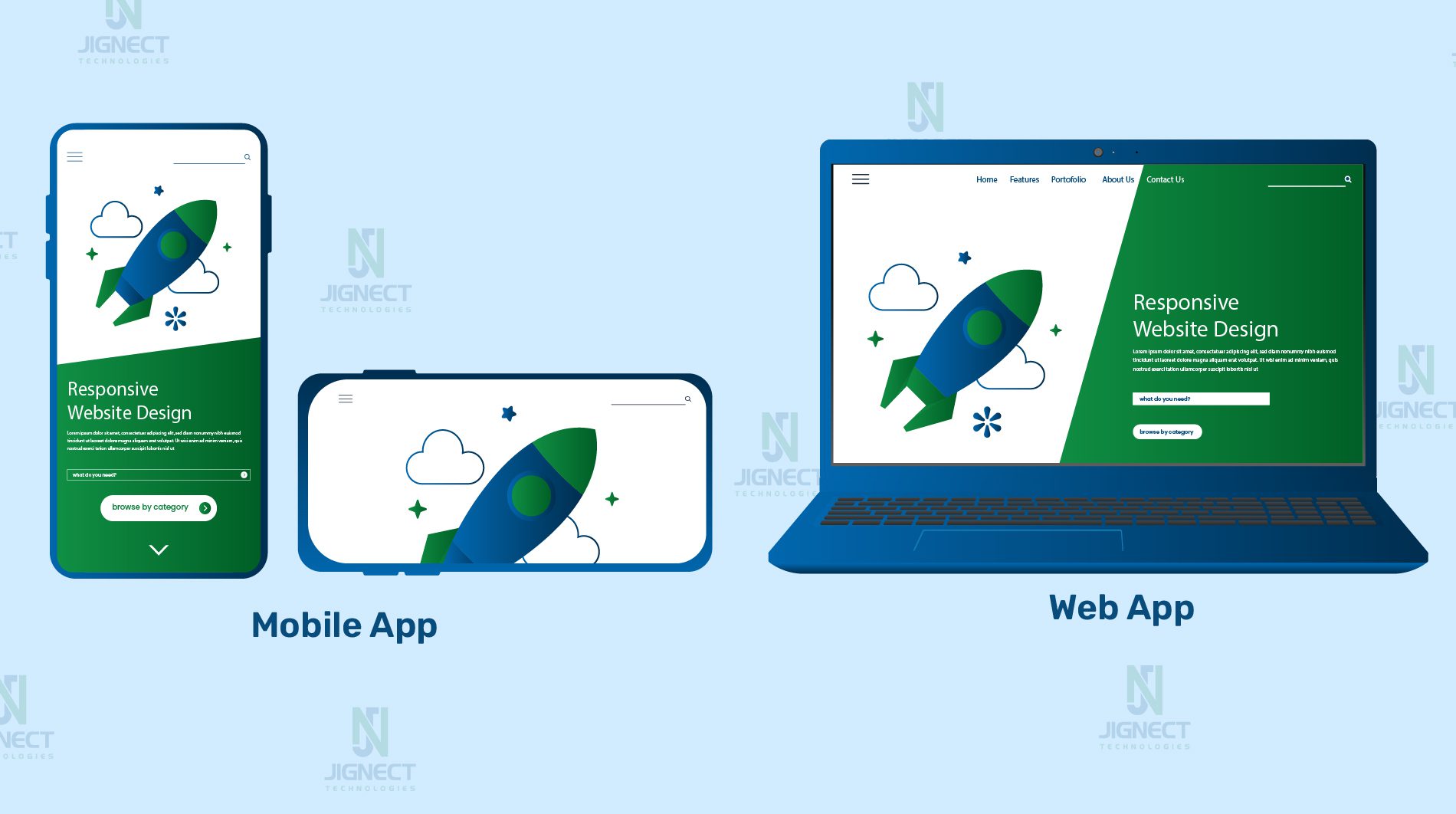
- Mobile: multiple screen sizes, touch gestures, orientation changes
- Mobile apps must be tested across a wide range of screen sizes, resolutions, and aspect ratios from a compact iPhone SE to a large iPad Pro or foldable Android device. Beyond visuals, QA engineers also need to validate touch interactions such as swipes, pinches, long-presses, and multi-finger gestures.
- Example: A photo gallery app might allow users to pinch-to-zoom on images. On some smaller Android devices, this gesture could overlap with system-level navigation, causing accidental app exits. QA testing ensures the gesture works reliably across devices and orientations (portrait vs. landscape).
- Mobile apps must be tested across a wide range of screen sizes, resolutions, and aspect ratios from a compact iPhone SE to a large iPad Pro or foldable Android device. Beyond visuals, QA engineers also need to validate touch interactions such as swipes, pinches, long-presses, and multi-finger gestures.
- Web: responsive design across browsers and devices
- For web applications, the challenge is less about hardware-specific variations and more about ensuring responsive design. Modern sites must adapt to different viewports and handle browser-specific quirks in rendering.
- Example: A dashboard built with CSS Grid may look perfect on Chrome but shift misaligned on Safari due to differences in how each browser interprets grid properties. Testers should validate layouts using browser dev tools (responsive design mode) and confirm critical UI elements like navigation bars or input forms don’t break.
- For web applications, the challenge is less about hardware-specific variations and more about ensuring responsive design. Modern sites must adapt to different viewports and handle browser-specific quirks in rendering.
- Ensuring smooth transitions and performance on low-end devices
- Both mobile and web apps must be tested for performance, but the constraints differ. Mobile devices often have limited CPU, RAM, or battery, which means animations, scrolling, and transitions can feel sluggish if not optimized.
- Example: A mobile shopping app that uses heavy animations during checkout may cause older devices to stutter or even crash. QA teams should simulate low-memory conditions and slower processors to verify the app remains usable. On the web, testers might instead focus on ensuring CSS transitions don’t freeze the UI on older browsers or low-end laptops.
- Both mobile and web apps must be tested for performance, but the constraints differ. Mobile devices often have limited CPU, RAM, or battery, which means animations, scrolling, and transitions can feel sluggish if not optimized.
Key takeaway:
- Mobile testing must account for hardware differences, gesture-based navigation, and orientation changes.
- Web testing emphasizes responsive design across different browsers and viewport sizes.
- Both require performance validation, but mobile QA must pay special attention to low-end hardware and resource limitations.
Hardware & Sensor Integration
- Mobile: GPS, camera, accelerometer, Face ID, push notifications: Mobile apps often go beyond simple UI and API calls; they interact with the physical hardware of the device. QA teams need to verify:
- GPS & Location Services – Navigation apps like Google Maps or Uber rely on accurate location tracking. A tester might simulate different GPS coordinates to confirm that ride-hailing works correctly in various cities.
- Camera & Media Access – Apps such as Instagram or WhatsApp require access to the camera, microphone, or photo library. QA must test whether the app handles permissions gracefully (e.g., user denies camera access).
- Biometric Authentication – Banking apps often use Face ID or Touch ID. QA should test fallback flows (e.g., entering a passcode if the fingerprint sensor fails).
- Push Notifications – Messaging apps like Telegram rely heavily on push notifications. Testers need to validate notifications that appear reliably across iOS and Android, including when the app is closed or in the background.
- Testing permissions, device-specific variations, and interrupts
Unlike web apps, mobile testing must consider real-world conditions and hardware differences:- Permissions: Apps must handle both “Allow” and “Don’t Allow” cases. For instance, a food delivery app should show a clear message if location access is denied instead of crashing.
- Device Variations: On some Android devices, battery optimization settings may prevent background services (like music streaming or fitness tracking) from running smoothly. QA should test across multiple OEMs to catch such issues.
- Interrupts: Mobile users constantly face interruptions in incoming calls, SMS, low battery warnings, or switching apps. QA must ensure the app can pause and resume without data loss. For example, a video conferencing app should automatically mute audio during a call and resume properly afterward.
- Why web apps rarely face these challenges : Web applications, by design, are sandboxed within the browser. They typically don’t access native device sensors (beyond what’s exposed via APIs like Geolocation or WebRTC). This means QA engineers don’t need to test hardware interactions like accelerometer readings or camera permission prompts in the same depth.
- Example: A web-based video conferencing tool like Google Meet in Chrome might request webcam and microphone access once, but it doesn’t need to handle device-specific quirks like fingerprint authentication or custom battery-saving restrictions.
Key takeaway:
- Mobile apps must be validated against a wide variety of hardware sensors, OS permission flows, and real-world interruptions.
- Web apps run in browsers and are more insulated from hardware variations, so testing focuses on software behavior rather than device-level interactions.
Performance Constraints
Performance testing is critical in both mobile and web applications, but the factors that impact performance differ significantly between the two. QA teams need to design their test strategies with these unique constraints in mind.
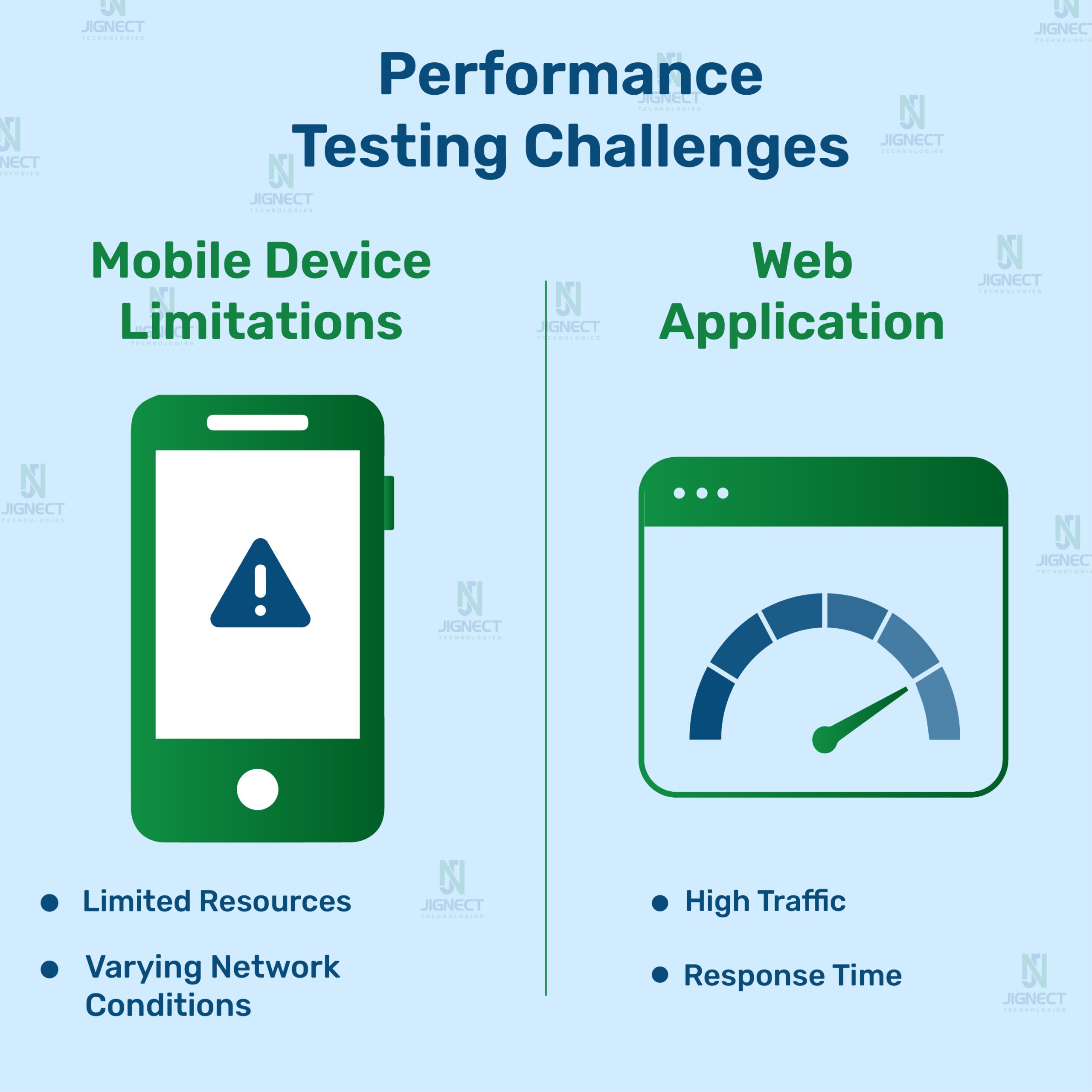
- Mobile: limited CPU, memory, battery usage, offline handling.
- Hardware limitations: Mobile devices range from high-end flagships with 12GB+ RAM to budget models with as little as 2GB RAM. QA must ensure the app runs smoothly across this spectrum.
- Example: A mobile game that runs flawlessly on an iPhone 15 Pro might crash or lag on a low-end Android device if memory usage isn’t optimized. Stress testing with multiple background apps running can reveal memory leaks or performance bottlenecks.
- Battery consumption: Apps that overuse background services, GPS, or Bluetooth can quickly drain the battery, leading to negative reviews. QA teams often use tools like Android Profiler or Xcode Instruments (Energy Log) to measure power usage.
- Example: A health-tracking app that continuously polls GPS data needs to be tested to ensure it balances accuracy with battery efficiency.
- Offline and poor connectivity: Mobile apps frequently run in areas with limited or no network coverage. QA must test how the app behaves when the network drops mid-transaction.
- Example: A mobile payment app should queue transactions offline and sync them safely once connectivity is restored, rather than showing errors or losing data.
- Hardware limitations: Mobile devices range from high-end flagships with 12GB+ RAM to budget models with as little as 2GB RAM. QA must ensure the app runs smoothly across this spectrum.
- Web: focus on load times, scalability, and cross-browser performance
- Page load speed: Users expect web pages to load in under 3 seconds. QA must measure Time to First Byte (TTFB), Largest Contentful Paint (LCP), and First Input Delay (FID). Tools like Google Lighthouse or WebPageTest can be used.
- Example: An online news site with heavy images and scripts might load slowly on a 3G connection. QA should validate lazy loading of images and caching strategies.
- Scalability under load: Since web apps often serve thousands of users simultaneously, stress and load testing are critical. Tools like Apache JMeter or k6 can simulate thousands of concurrent users.
- Example: An e-commerce platform running a Black Friday sale must be tested to handle sudden spikes in traffic without crashing or slowing down checkout.
- Cross-browser and device performance: Even if functionality works, performance can degrade in certain environments. A web app may run smoothly in Chrome but feel sluggish in Firefox due to differences in rendering engines. QA teams should measure and compare performance across browsers and devices.
- Page load speed: Users expect web pages to load in under 3 seconds. QA must measure Time to First Byte (TTFB), Largest Contentful Paint (LCP), and First Input Delay (FID). Tools like Google Lighthouse or WebPageTest can be used.
Key takeaway:
- Mobile apps need testing for hardware efficiency (CPU, memory, battery) and offline resilience.
- Web apps require testing for fast load times, scalability under heavy traffic, and consistent cross-browser performance.
- Adapting performance test strategies to each platform ensures smoother user experiences and better retention.
Network Conditions
- Mobile: variable connectivity (Wi-Fi, 3G, 4G, 5G, offline mode)
Mobile apps are used on the go, meaning testers must account for inconsistent and shifting network environments.- Users may switch between Wi-Fi at home, 4G/5G while commuting, and poor reception in remote areas.
- Apps should handle scenarios such as airplane mode, weak signal, or rapid switching between networks without crashing or corrupting data.
- Example: A ride-hailing app like Uber must still update the driver’s location and passenger requests even when connectivity drops briefly in an underground tunnel.
- Importance of testing caching, sync, and recovery from network loss
Unlike web apps, many mobile apps support offline or intermittent usage. QA engineers must validate:- Caching strategies: Does the app save local data for later syncing? For example, a note-taking app like Evernote should allow users to create notes offline and sync them once the device reconnects.
- Data integrity during reconnects: If a transaction starts while online but completes offline, does the app safely retry once the connection returns?
- User feedback: Apps should clearly inform users of offline status or failed actions, rather than silently failing.
- Example: A food delivery app should cache the menu so users can browse while offline. When the network returns, it should update prices and availability seamlessly.
- Web apps: typically assume stable connectivity Most web applications are built to operate only when connected. If the network fails, the entire app may stop working or display a generic browser error.
- QA testing focuses on verifying that the app gracefully handles timeouts, retries, or session expirations.
- While modern technologies like Progressive Web Apps (PWAs) introduce limited offline functionality, traditional web apps don’t commonly support full offline use.
- Example: An online banking portal accessed through Chrome will display an error page if the internet drops unlike its mobile app counterpart, which may still show cached balances and queue transactions for later.
Key takeaway:
- Mobile apps must be tested under fluctuating connectivity conditions, validating offline use, caching, and smooth recovery when the network is restored.
- Web apps usually assume a reliable internet connection, with QA focusing on error handling and timeouts rather than offline workflows.
Platform-Specific Nuances
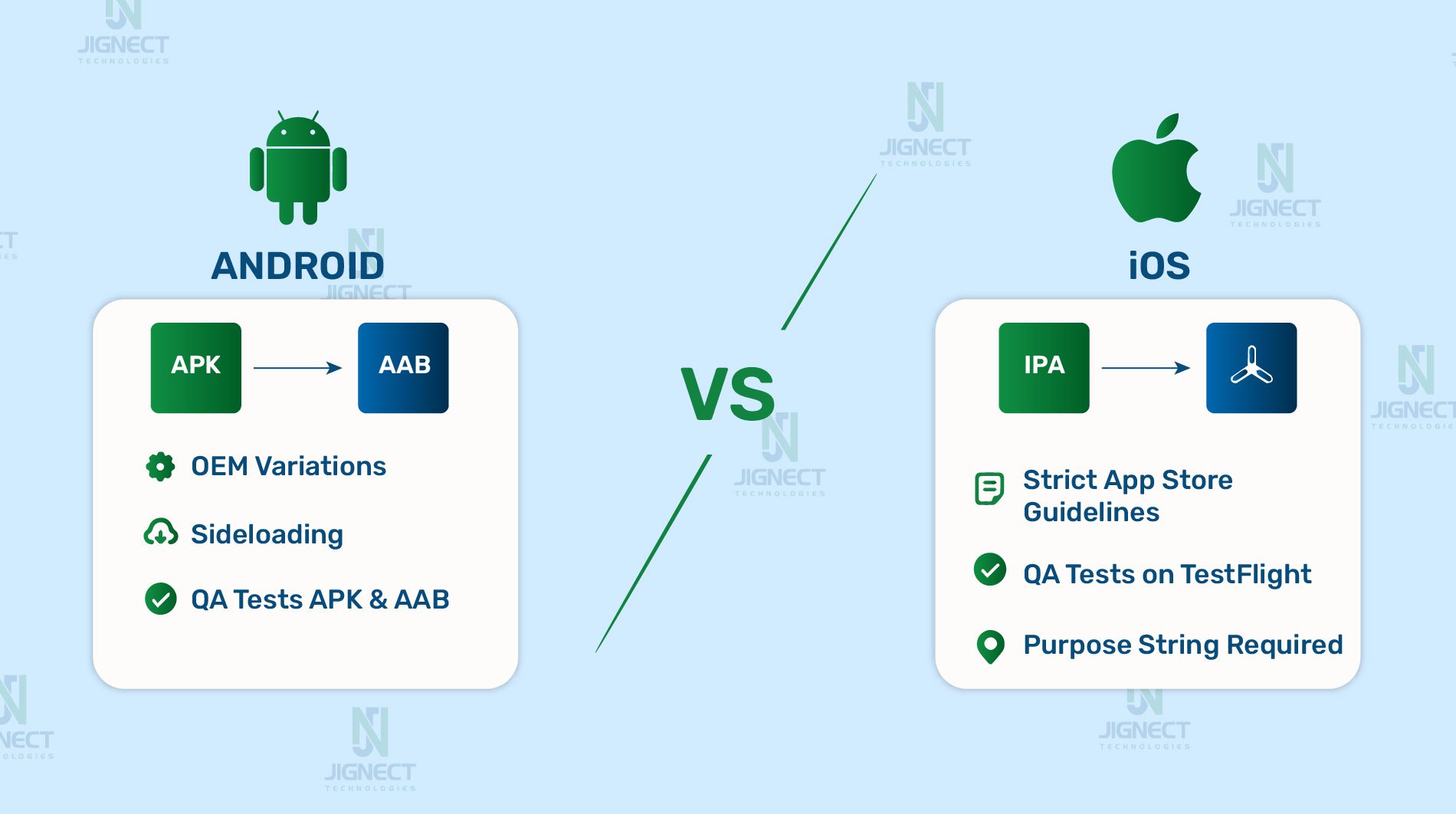
- Android: APK vs AAB, OEM variations, sideloading
- Android apps can be distributed as APK (Android Package) or AAB (Android App Bundle). APKs are installable directly, while AABs are processed by Google Play to generate device-specific APKs. QA often tests both formats to ensure compatibility.
- The Android ecosystem is fragmented due to OEM customizations (e.g., Samsung One UI, Xiaomi MIUI). A feature that works on a Google Pixel may behave differently on a Samsung device with aggressive background app restrictions.
- Sideloading adds another wrinkle: users can install APKs directly outside of the Play Store. QA must validate whether these builds behave consistently and whether security settings (like “Allow Unknown Sources”) affect installation.
- Example: A music streaming app may run smoothly on stock Android but stop playback when the screen locks on certain Huawei phones because of aggressive power management.
- iOS: IPA builds, TestFlight, strict App Store guidelines
- iOS apps are packaged as IPA (iOS App Archive) files. Unlike Android, direct installation requires provisioning profiles tied to registered device UDIDs, unless the app is distributed via TestFlight.
- TestFlight allows up to 10,000 testers but requires Apple’s review even for beta builds. QA engineers need to account for TestFlight expiration (builds expire after 90 days) and ensure testers install the right provisioning profile if Ad Hoc distribution is used.
- Apple enforces strict App Store guidelines covering UI, privacy, and permissions. QA must validate that the app complies (e.g., providing purpose strings for camera access, following iOS design patterns). Non-compliance often results in rejection and delays.
- Example: A shopping app requesting location permission must include a proper “purpose string” like “We use your location to find nearby stores”. Without it, the app would be rejected during Apple’s review.
- Cross-platform automation challenges (Appium, XCUITest, Selenium)
- Test automation differs across platforms.
- Mobile: Tools like Appium, XCUITest (iOS), and Espresso (Android) are commonly used. Setting up automation requires dealing with emulators, simulators, or real-device farms.
- Web: Automation is more straightforward using tools like Selenium or Playwright, since browsers are standardized and device diversity is lower.
- Mobile automation often faces challenges such as handling gestures (swipes, pinches), device orientation changes, and hardware interactions (camera, biometrics).
- Example: Automating a login flow in a web app via Selenium is straightforward (fill form → click submit). On mobile, the same flow may require automating a biometric prompt using Appium and verifying fallback flows if Face ID fails.
- Test automation differs across platforms.
Key takeaway:
- Android testing requires handling multiple package formats, OEM-specific behaviors, and sideloading scenarios.
- iOS testing is more controlled but comes with strict signing, provisioning, and compliance requirements.
- Automation on mobile is more complex than on the web, due to hardware interactions and fragmented ecosystems.
Build Distribution for Testing
- Android: APKs, AABs, internal app sharing, debug vs release builds (Firebase App Distribution)
- APK (Android Package): A standard installable file format for Android applications. Testers often receive APK files directly from developers to install on physical devices or emulators. Installation can be done via ADB commands or manual sideloading after enabling “Install from Unknown Sources”.
- AAB (Android App Bundle): Google’s preferred format for publishing on Google Play. It’s not installable directly but used by Google Play to generate device-specific APKs. For testing, developers convert AABs into APKs using tools like bundletool, or distribute through Google Play’s Internal Test Track.
- Internal App Sharing / Testing Tracks: Google Play provides Internal Test Tracks and Internal App Sharing features to share APKs or AABs with testers via shareable links, simplifying distribution without the need for manual installs or device UDIDs.
- Debug vs Release builds:
- Debug Builds: Contain additional logging and debugging features for development and early QA testing.
- Release Builds: Optimized for performance and represent production-ready versions, signed with release keys. Essential for validating actual user behavior in production-like environments.
- Example: A social media app team might distribute a debug APK internally during development, then push a release-signed build via Google Play’s Closed Testing track for broader QA validation.
- Firebase App Distribution: How It Works for Android Testing Firebase App Distribution provides an easy way to distribute pre-release versions of your Android app to internal and external testers. Here’s the typical workflow for distributing an APK via Firebase:
- Build the APK or AAB:
- Developers compile the Android project and generate an APK (for direct installs) or AAB (which Firebase can also handle but requires extra steps for direct testing).
- Upload to Firebase:
- Using the Firebase Console, Firebase CLI, or CI/CD pipeline (e.g., using firebase app distribution: distribute command), the APK is uploaded to Firebase App Distribution.
- Add Testers:
- Testers are added via email addresses in Firebase App Distribution. Firebase automatically sends them an invitation email containing a secure link.
- Tester Installs the App:
- The tester opens the invitation link on their Android device.
- They are prompted to download the Firebase App Distribution app (if not already installed).
- Once installed, the tester opens Firebase App Distribution, logs in, and downloads the distributed APK directly.
- The APK is installed after allowing “Install from Unknown Sources” for Firebase App Distribution.
- Testers can run the app and report feedback directly to Firebase.
- Ability to Download Older Builds
- Testers can view a list of all builds uploaded to Firebase for the app.
- They can download any previous build at any time, as long as the build has not been removed by the developer.
- This enables reproducing bugs in older versions or verifying behavior across releases without requesting specific APK files again.
- Benefits of Firebase App Distribution:
- Simplifies managing testers without handling UDIDs.
- Centralized dashboard to track build versions, testers, and distribution status.
- Automated notifications on new builds.
- Supports both internal and external testers (with different levels of access).
- Facilitates crash reports and tester feedback aggregation.
- Key Takeaway: Firebase App Distribution provides a streamlined solution for distributing pre-release APKs or AABs for Android testing, especially useful when managing large numbers of testers without worrying about device UDIDs or manual installs. It offers real-time build management, easy installation flows for testers, and feedback integration significantly improving QA efficiency in mobile app development cycles.
- Build the APK or AAB:
- iOS: TestFlight, Ad Hoc provisioning, enterprise distribution
- TestFlight: Apple’s official beta distribution platform. Developers upload builds to App Store Connect and invite testers via email or public link. TestFlight allows up to 10,000 external testers, but builds expire after 90 days.
- Ad Hoc distribution: Requires collecting testers’ device UDIDs ahead of time and generating a provisioning profile. Limited to 100 devices per year. Suitable for small internal QA teams.
- Enterprise distribution: Available to companies enrolled in Apple’s Enterprise Program. Used to distribute in-house apps without going through the App Store, often for internal corporate tools.
- Example: A fintech company may release its beta app via TestFlight to a group of 200 external testers, while distributing Ad Hoc builds to internal QA engineers for daily regression testing.
- How Apps Are Installed Using TestFlight on iOS TestFlight is Apple’s official solution for distributing pre-release iOS apps to testers. It simplifies the installation process and helps gather early feedback from internal and external testers. Here’s a step-by-step flow of how the installation works:
- Developer Uploads Build to App Store Connect
- Developers build the iOS app as an IPA (iOS App Archive) file using Xcode.
- The IPA is uploaded to App Store Connect, where it passes basic validation checks.
- The developer selects the build for TestFlight distribution and provides relevant information such as release notes.
- Inviting Testers
- Testers can be:
- Internal testers (up to 100 members with Apple Developer Team roles).
- External testers (up to 10,000 external users).
- Testers are invited via email or a public TestFlight link.
- For external testers, Apple requires a brief review before the build is distributed.
- Tester Receives Invitation
- Testers get an invitation email containing a unique link or can access the build via a public link (if shared).
- The email includes instructions to download the TestFlight app from the App Store.
- Installation Process
- Tester installs the TestFlight app from the App Store on their iOS device (iPhone or iPad).
- Tester opens the invitation link or opens the TestFlight app and logs in with their Apple ID.
- The build appears in TestFlight’s dashboard.
- The tester taps “Install” and the IPA is installed on the device.
- Running the Test Build
- Once installed, the app behaves like any other iOS app.
- Testers can run the app, use its features, and verify intended functionality.
- Testers can send feedback directly from within the TestFlight app, including screenshots, logs, and comments.
- Ability to Download Older Builds
- Testers can download any previous build available in TestFlight at any time.
- This allows testers to reproduce issues or compare behavior across different app versions.
- TestFlight shows the version number and expiration date for each available build, and testers can choose which one to install.
- Build Expiration
- Each build distributed via TestFlight expires after 90 days.
- Testers receive notifications as the expiration date approaches.
- Developers upload new builds periodically to continue testing cycles.
- Benefits of TestFlight Distribution
- No need for collecting UDIDs or managing provisioning profiles manually.
- Centralized dashboard in App Store Connect to manage builds and testers.
- Supports both internal and external testers.
- Built-in feedback system makes it easy to gather crash reports and user feedback.
- Simplifies testing of apps in real-world usage conditions before App Store release.
- Key Takeaway: Using TestFlight for iOS app distribution ensures a secure and efficient way for QA teams to distribute beta builds to testers without worrying about device UDIDs or manual provisioning. It allows testing on real devices in production-like environments and collects valuable user feedback with minimal setup.
- Developer Uploads Build to App Store Connect
- Common issues (certificates, provisioning profiles, build expiry)
- Certificates & signing: iOS builds must be signed with valid developer or distribution certificates. If a certificate expires or isn’t included correctly, testers won’t be able to install the app.
- Provisioning profiles: For Ad Hoc distribution, testers’ device UDIDs must be added to the provisioning profile. Missing a UDID means that the tester can’t install the build.
- Build expiry: TestFlight builds expire after 90 days; Ad Hoc provisioning profiles typically expire after one year. QA teams must coordinate closely with developers to ensure fresh builds are always available.
- Example: An e-learning app distributed via TestFlight suddenly stops working for testers after 3 months because the build expired, forcing developers to re-upload a fresh IPA and re-invite testers.
Key takeaway:
- On Android, distribution is flexible (APKs, AABs, internal app sharing), but QA must test both debug and release builds.
- On iOS, distribution is stricter, requiring signed IPAs via TestFlight, Ad Hoc, or enterprise distribution.
- Certificates, provisioning, and build expiry are common pain points that can block QA testing if not managed carefully.
The Mobile Release Process
- Alpha (internal testing & staging)
- At this stage, developers prepare an internal build (often called an alpha build or release candidate) for the QA team and internal stakeholders.
- QA focuses on regression testing, verifying new features, and checking that critical bugs are resolved.
- Builds are usually distributed via Google Play Internal Testing (Android) or TestFlight internal testers (iOS).
- Teams may also “dogfood” the app using it internally in real-world conditions to uncover usability issues early.
- Example: A ride-hailing company might distribute an alpha build with a new “multi-stop trip” feature to QA and a few internal drivers to test it in staging before broader rollout.
- Beta testing (external testers, UAT, Google Play closed testing, TestFlight)
- Once QA signs off the alpha build, the app is released to a larger group of external testers.
- On Android, this often uses Google Play’s Closed Testing track, while iOS teams invite testers through TestFlight external groups (requires Apple’s approval, even for betas).
- Beta testing serves as User Acceptance Testing (UAT), where real users validate usability, performance, and edge cases that may not appear in internal environments.
- Example: A fintech app might run a closed beta with 200 external users to validate new payment workflows under real-world conditions before public release.
- App Store & Google Play submission/review
- After QA and beta testers confirm stability, the app is prepared for store submission.
- Apple App Store: Apps must pass a manual review, where Apple checks compliance with guidelines (UI, permissions, content). Reviews typically take 24–48 hours. Missing details (like a privacy policy link or correct permission descriptions) can cause rejection.
- Google Play Store: Reviews are faster, often completed within a few hours, and rely more on automated checks (malware scans, policy compliance). However, critical violations can still trigger rejections.
- QA teams often do a final sanity test on the release build uploaded to the stores, confirming it installs and runs correctly with production configurations.
- Example: A food delivery app rejected by Apple because its “location usage description” wasn’t specific enough (“We need your location” vs. “We use your location to find nearby restaurants”).
- Production rollout (phased releases, monitoring, post-release validation)
- Once approved, the app is released to end users. Many teams use a staged rollout strategy:
- Release to a small % of users (e.g., 5%) and monitor crash reports and analytics.
- Gradually scale to 25%, 50%, and then 100% if no critical issues are reported.
- QA’s role doesn’t stop here; they perform post-release validation by downloading the live app from the store, confirming correct version numbers, and running smoke tests.
- Monitoring tools like Firebase Crashlytics (Android/iOS) or App Store Connect Analytics help detect crashes, performance bottlenecks, and user feedback quickly.
- Example: A messaging app rolls out a new update to 10% of users. Crashlytics flags a memory leak on older Samsung devices, so the team halts the rollout, fixes the bug, and resubmits before releasing to the rest of the user base.
- Once approved, the app is released to end users. Many teams use a staged rollout strategy:
Key takeaway:
- Alpha: Internal validation in staging.
- Beta: Wider UAT with external testers. Submission: Store reviews (slower and stricter for Apple, faster for Google). Production: Phased rollout, monitoring, and post-release validation.
Do’s and Don’ts in Mobile App Testing
When it comes to mobile app testing, there are best practices that can make the difference between a smooth launch and frustrated users. Here’s a clear list of do’s and don’ts you can include in your blog:
- Do: Test on multiple devices, OS versions, and real hardware
- Mobile apps run on countless combinations of devices, screen sizes, and operating systems.
- Always test on a representative device matrix (e.g., budget, mid-range, and flagship models across iOS and Android).
- Don’t rely only on emulators, real devices help you catch hardware-specific issues like overheating, camera access failures, or touch sensitivity problems.
- Example: An app that works perfectly on a Pixel 8 Pro might have UI cut-off issues on an older Samsung Galaxy A50 due to different screen resolutions.
- Do: Test under real-world conditions (low battery, poor network, interruptions)
- Users rarely interact with apps in ideal conditions.
- Simulate weak Wi-Fi, 3G-only connections, or switching between networks to ensure features like payments or data sync don’t break.
- Test behavior when receiving calls, texts, or push notifications mid-session.
- Don’t forget to check battery performance apps that drain power quickly are often uninstalled.
- Example: While testing a video conferencing app, simulate a low-battery scenario and incoming calls to ensure the session recovers without crashing.
- Don’t assume one device/OS represents all users
- Android fragmentation means thousands of device/OS combinations exist.
- iOS may be simpler, but differences between iOS 15 and iOS 18 can still affect app behavior.
- Always test across different screen sizes, resolutions, and hardware capabilities.
- Example: A shopping app might crash on iOS 15 but work fine on iOS 18 due to differences in how WebViews handle JavaScript.
- Don’t skip negative/edge-case testing
- Real users will always do the “wrong” thing: turning off Wi-Fi mid-checkout, entering invalid data, or using features in unexpected ways.
- Test boundary cases like maximum input length, special characters in usernames, or uploading very large files.
- Ensure the app fails gracefully with clear error messages instead of crashing.
- Example: A travel app that doesn’t handle a past date search might throw an error instead of gently telling the user that the date is invalid.
- Do: Document and update test cases, validate release notes
- Maintain a living repository of test cases for both manual and automated testing.
- Update your test suite whenever new features are introduced or old ones are changed.
- Cross-check release notes against actual app behavior to ensure all changes are reflected and communicated correctly.
- Example: If a food delivery app updates its payment method integration, QA should verify the new flow and confirm that the release notes match the user experience.
Key takeaway:
- Mobile app testing is not just about “does it work?” it’s about ensuring the app works everywhere, for everyone, under all conditions.
- Following these do’s and avoiding the don’ts reduces production bugs, improves user trust, and leads to higher ratings in app stores.
Q&A: Common Mobile Testing Questions
Q1: Why is device fragmentation such a challenge?
- Explanation: Android alone powers thousands of devices with different screen sizes, resolutions, chipsets, and custom manufacturer skins (e.g., Samsung’s One UI vs. stock Android). iOS is more consistent but still has multiple active versions (e.g., iOS 15, 16, 17). This variety means an app may work flawlessly on one device but fail on another due to hardware or OS differences.
- Example: A video streaming app may play smoothly on a Google Pixel but experience stuttering on a budget device with only 2GB of RAM. Similarly, certain Huawei or Xiaomi devices may restrict background services, breaking features like push notifications.
Q2: How can testers get iOS builds without the App Store?
- TestFlight (official Apple solution): Developers upload the IPA to App Store Connect and invite testers via email or a public link. TestFlight supports up to 10,000 external testers and simplifies distribution since testers don’t need to share device UDIDs. However, each build expires after 90 days.
- Ad Hoc distribution: Developers create a provisioning profile that includes the specific UDIDs of each test device (limited to 100 devices per year). The IPA is then shared via a link or MDM tool.
- Enterprise distribution: Companies enrolled in Apple’s Enterprise Program can distribute apps internally without going through the App Store.
- Example: A fintech startup may use TestFlight to invite early adopters, while sharing Ad Hoc builds internally with its QA team for quick validation.
Q3: What’s the difference between APK and AAB?
- APK (Android Package): The traditional format for Android apps. It’s a ready-to-install file that can be sideloaded directly onto a device.
- AAB (Android App Bundle): A newer format mandated by Google Play. It contains all app resources and code, but Google Play generates optimized APKs per device configuration (e.g., screen size, CPU type). This reduces app size and improves performance for end users.
- QA Consideration: Testers often need both APKs for quick internal testing and AABs for store-based testing.
- Example: A gaming studio might share an APK with QA engineers during development, but upload an AAB to Google Play’s Internal Test Track for distribution to a larger test group.
Q4: How does the release approval process differ between App Store and Google Play Store?
- Apple App Store: Every build goes through manual review, where Apple checks for guideline compliance (UI, privacy, security, content). This can take 24–48 hours, and rejections are common if metadata or permission descriptions aren’t clear.
- Google Play Store: Relies more on automated reviews and typically processes builds within a few hours. While faster, Google still checks for malware, policy compliance, and security risks.
- Example: A shopping app update that requests camera access might be live on Google Play within hours, but could be delayed for days on the App Store if Apple requires changes to how the permission is explained.
Q5: How to test apps under varying network conditions?
- Simulate different speeds: Use tools like Network Link Conditioner (iOS) or Android’s Network Profiler to mimic 3G, 4G, 5G, and poor Wi-Fi.
- Test offline mode: Turn on airplane mode to check whether the app still works for offline features (e.g., accessing cached data).
- Check reconnection handling: Simulate dropping and restoring connectivity mid-action. The app should retry requests or gracefully inform users.
- Example: A note-taking app like Notion should allow a user to create notes offline and then sync them automatically once Wi-Fi is restored, without duplicates or data loss.
Q6: What should a test plan for a new mobile app feature include (e.g., adding a push notification feature)?
- Functional testing: Validate that the notification is triggered under the right conditions (e.g., a new message is received).
- Permission flows: Test both “Allow” and “Don’t Allow” cases for notifications on iOS and Android.
- Device & OS coverage: Verify notifications work on different OS versions and device types.
- App states: Test notifications when the app is in the foreground, background, and completely closed.
- Performance impact: Check if frequent notifications drain the battery or slow down the app.
- User experience: Ensure notifications are clear, actionable, and respect user preferences (e.g., “Do Not Disturb” mode).
- Example: In a news app, QA might test that a “Breaking News” push notification opens the correct article whether the app is open, minimized, or force-closed.
Key takeaway:
This Q&A highlights real-world challenges QA teams face in mobile testing from device fragmentation to store approvals. Preparing for these scenarios ensures smoother releases and a better user experience compared to web app testing.
Conclusion
- Mobile and web apps share the same goal but not the same challenges.
While both need to deliver smooth, reliable experiences, the environments in which they operate are very different. Web apps rely on browsers and can be updated instantly, whereas mobile apps are tied to device hardware, operating system versions, and app store approvals. - Mobile app testing demands broader coverage.
QA engineers must validate apps across countless device models, screen sizes, and OS versions (especially in the Android ecosystem). They also need to test hardware features like GPS, camera, and biometrics, along with scenarios involving low battery, poor connectivity, or interruptions like calls and notifications. - Web app testing emphasizes compatibility and speed.
The primary focus is on ensuring cross-browser rendering consistency, fast load times, and scalability under heavy traffic. Hardware diversity plays a smaller role, since most web apps run inside standardized browsers. - Release cycles are a key differentiator. Web apps can be updated instantly, while mobile apps must go through packaging, signing, and app store review processes. This makes QA’s role even more critical in mobile development, since issues are harder to fix quickly once an app is live.
- Best practices and discipline matter.
Testing on real devices, simulating real-world conditions, performing negative testing, and keeping test cases up to date are all crucial for mobile QA. Skipping these steps can lead to poor user experiences and negative reviews. - Final takeaway:
Successful QA in today’s multi-platform world means adapting your testing strategy to the platform. For web apps, prioritize responsiveness and browser compatibility. For mobile apps, account for device fragmentation, hardware integration, network variability, and app store release cycles. By tailoring your approach, you can ensure both web and mobile users enjoy reliable, seamless experiences and that your product stands out in a crowded digital landscape.
Witness how our meticulous approach and cutting-edge solutions elevated quality and performance to new heights. Begin your journey into the world of software testing excellence. To know more refer to Tools & Technologies & QA Services.
If you would like to learn more about the awesome services we provide, be sure to reach out.
Happy Testing 🙂
